In this release, the Bank Reconciliation screen has been enhanced to allow users better visibility and flexibility in managing and loading Statement files.
Please Note: As part of this release, we are removing the restriction of not allowing users to upload bank statement files with ‘TODAYS DATE’ on them.
Same Date
Users can now upload CSV Statement files that have the same date more than once.
Set up with a User Option ‘LOADSAMEDATE’ (Administration -> Corporate -> Users Masterfile->Options->User Options), when this option is ON, users may now load statement files using the same date without restriction.
This option will be set as OFF to default.
Bank Load History
A new Bank Load History button has been added to the top toolbar.
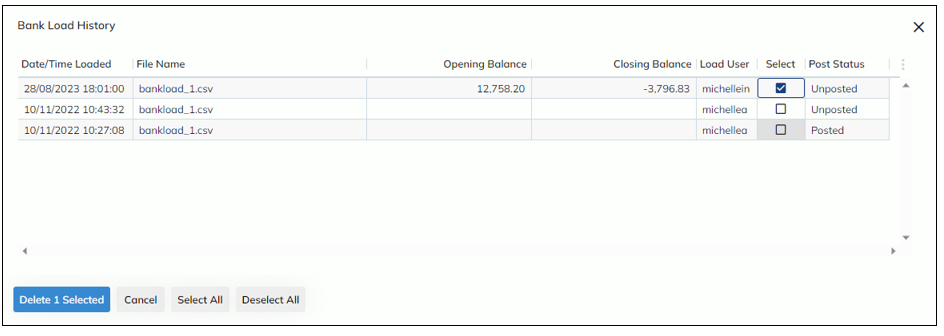
Selecting this button will open a modal that will list all loaded statement files in history against each Bank Account record.
Users can now quickly see when each file was loaded, the Opening and Closing Balance at the time (GL Balance and Statement Balance), the user who loaded the file and its status (Posted, Unposted, Deleted)
From this modal, if users have permission to delete loaded statement files (User Option: DELBANKRECLD), they will be able to delete any file that has remaining statement lines on the Bank Reconciliation screen.

How to delete Bank Statement files
Once a user is set up with permission to delete statement files (User Option: DELBANKRECLD set up in the Users Masterfile), they will have access to the ‘Delete’ button.
Only files that have the Post Status ‘Unposted’ may be deleted. This means, the file must have statement lines on the Bank Reconciliation screen. If there are no lines left on the Bank Reconciliation screen, the Post Status will be ‘Posted’.
To delete a file, simply
- Select the checkbox in the ‘Select’ column against the file you’d like removed
- Select the ‘Delete’ button
- Action any prompts
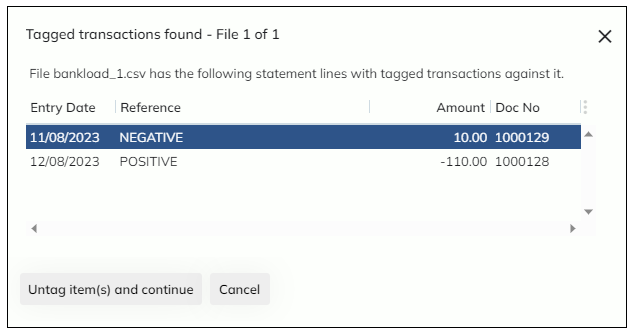
- System will check if there are any Expedient transactions tagged against any of the selected bank files to be removed. If there are transactions tagged against a file, you will be asked whether you still want the file deleted (Untag and continue) or if you’d like to cancelx
-
- An alert will appear in the top right corner confirming the deletion as well as the related statement lines on the file removed.
- After a file has been deleted, the Post Status column in the Bank Load History modal will change from ‘Unposted’ to ‘Deleted’.
Note: The Opening and Closing Balance are simply snapshots of the GL Balance (Opening Balance) and Statement Balance (Closing Balance) at the time of a file load. If there have been transactions entered and posted in the system without running the ‘Post Gen. Ledger All Months’ to refresh financials, these numbers will not be accurate.