In this release we have updated the current Spot Quote screen to allow users to Create and Link Bookings.
To create a Booking from a Spot Quote, the spot quote must be Accepted (Status=Accepted). Once Accepted, users may select the ‘Create Booking’ button.

Once linked, the event: BLSP -BOOKING LINKED TO SPOT QUOTE will be created on both the Spot Quote screen and the Booking screen. The event will have the relevant Booking/Spot Quote number as the reference.
NOTE: If users link an existing Booking to a Spot Quote from the Booking screen, any data in the Quote field will be overridden by the linked Spot Quote number.
Linking an existing Booking to a Spot Quote
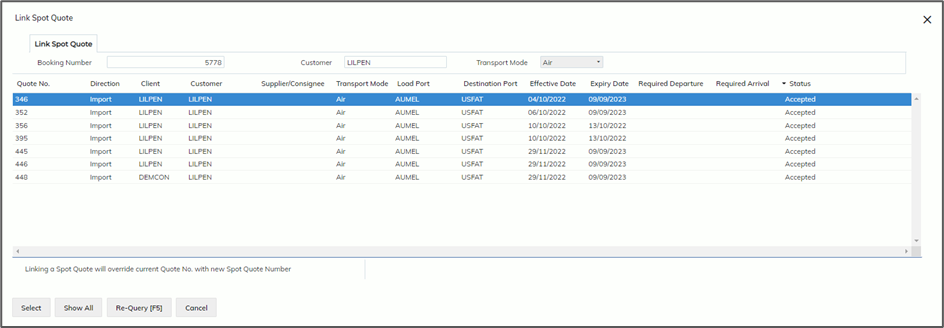
If a Booking has already been created and users would like to go back and link a Spot Quote to the Booking, they may do so using the ‘Link Spot Quote’ button, located under Options->Link Spot Quote.
NOTE: Only Accepted (Status) Spot Quote may be linked to a Booking and Spot Quotes with matching Directions (import/export).
Selecting this button will open a modal that will display any Spot Quote that has the same:
- Direction (IMPORT or EXPORT)
- Transport Mode (AIR or SEA)
- Transport Class (for SEA only)
- Customer (matches the Customer for import s and Shipper for exports)
- Load Port
- Destination Port
- Are not currently linked to a Booking or Job
- Are Accepted (Spot Quote Status)
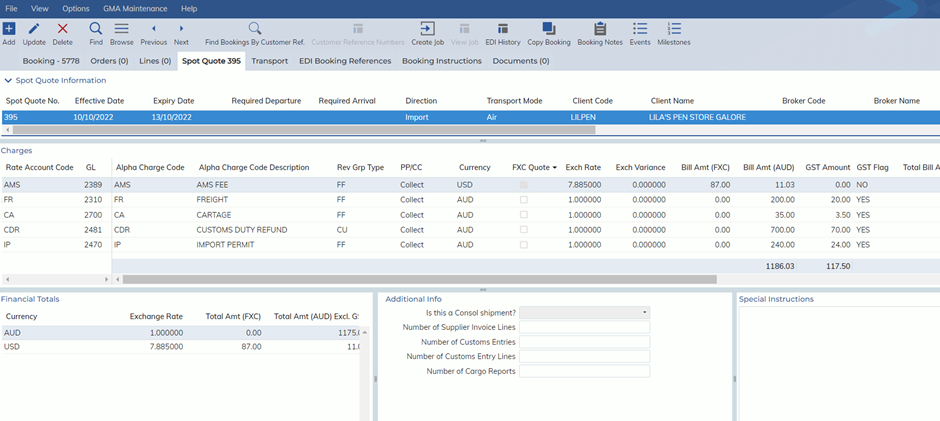
Once a Booking is linked to a Spot Quote, the Booking screen will have a new tab to hold a summary of the Spot Quote.
Unlinking a Spot Quote from a Booking
Users can unlink their spot quotes from their Bookings, from either the Spot Quote screen or the Booking screen.
In the Spot Quote screen, they select the Link->Unlink Booking button.
In the Booking screen, they select the Options->Unlink Spot Quote button.
NOTE: Users can only unlink a Spot Quote from a Booking if the Booking is not linked to a Job. Once linked to a Job, the Job must be unlinked before allowing users to unlink their Spot Quote from the Booking.
Creating a Job from a Booking that is linked to a Spot Quote
Users can still create a Job from their Booking after linking their Booking to a Spot Quote. Selecting the Create Job button from the Booking screen will prompt users to choose whether they wish to copy their Spot Quote charges into the new job and what exchange rates they would like to use if there was any FXC (foreign currency) used in the spot quote.
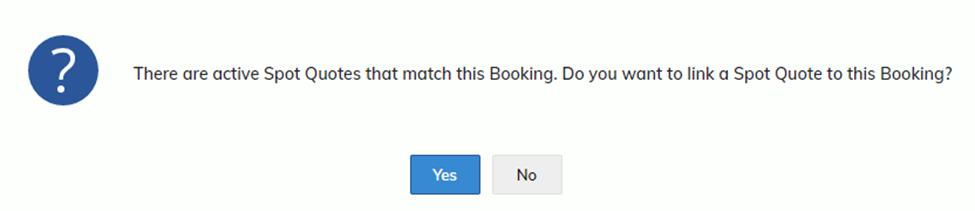
Active Spot Quote popup
Users can set up their Customer Masterfile (Administration -> Masterfile Management -> Customer Masterfile=>Configuration) to receive a pop-up if a Job or Booking matches an Accepted Spot Quote.
In the Configuration tab of the Customer Masterfile, are the following options:
- Add/Update Job – Show link spot quote pop up (for both Import and Export Air/Sea Jobs)
- Add/Update Booking – show link spot quote pop up (for both Import and Export Bookings)