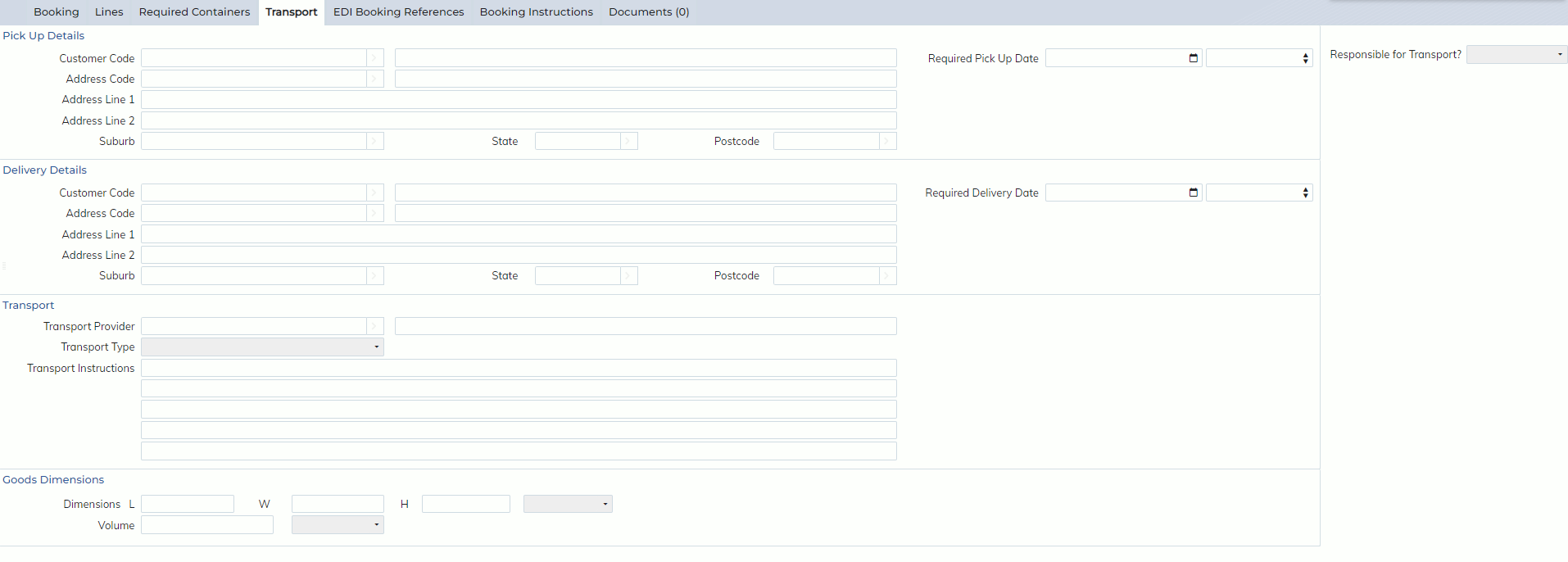
In this release, we have updated our Booking screens with a new Transport Tab.
– Import Bookings located: Order Management -> Imports -> Bookings
– Export Bookings located: Order Management -> Exports -> Bookings
This tab will allow users to specify delivery and pick up details for their bookings.
All existing bookings will not have any details populating it. However when users ADD a new booking, this tab will have the same defaults that the import and export Job screens do, populating details with the Customer’s default delivery addresses, configured in the Customer Masterfile’s ‘Delivery Address’ screen.
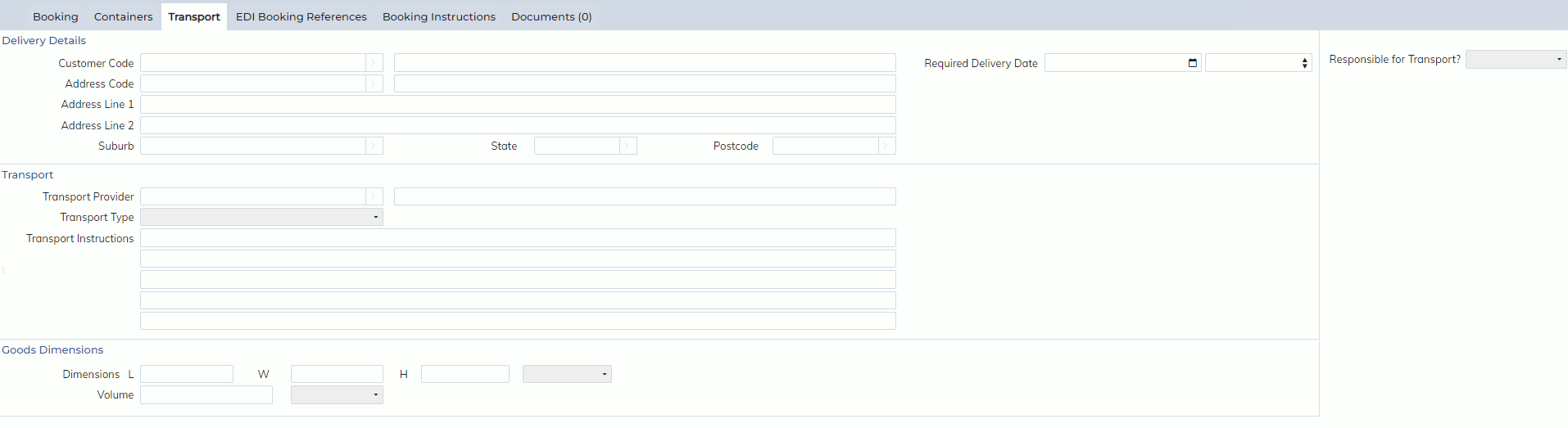
For Import Bookings, the following fields have been added to the new Transport Tab:
Delivery Details:
– Responsible for Transport flag (defaults based on delivery address specified in the Customer Masterfile)
– Customer Code/Name (defaults based on the Customer entered in the Booking)
– Address Code and Address details (defaults based on Default Address configured in the Customer Masterfile->Delivery Addresses)
– Business Name (defaults based on Address Code)
– Required Delivery Date
Transport:
– Transport Provider (defaults based on the Customer Masterfile’s ‘Preferred Transport Provider’ configuration
– Transport Type (defaults based on default Delivery Address specified in the Customer Masterfile)
– Transport Instructions (defaults based on default Delivery Address specified in the Customer Masterfile)
Goods Dimensions:
– Length
– Width
– Height
– Volume (can be manually entered, however will become a no entry field if length, width, height fields are all entered, to instead display an auto-calculated LxWxH).
For Export Bookings, the following fields have been added to the new Transport Tab:
Pickup Details:
– Responsible for Transport flag (defaults based on delivery address specified in the Customer Masterfile)
– Customer Code/Name (defaults based on the Customer entered in the Booking)
– Address Code and Address details (defaults based on Default Address configured in the Customer Masterfile->Delivery Addresses)
– Required Delivery Date
Delivery Details:
– Responsible for Transport flag (defaults based on delivery address specified in the Customer Masterfile)
– Customer Code/Name (defaults based on the Customer entered in the Booking)
– Address Code and Address details (defaults based on Default Address configured in the Customer Masterfile->Delivery Addresses)
– Required Delivery Date
Transport:
– Transport Provider (defaults based on the Customer Masterfile’s ‘Preferred Transport Provider’ configuration
– Transport Type (defaults based on default Delivery Address specified in the Customer Masterfile)
– Transport Instructions (defaults based on default Delivery Address specified in the Customer Masterfile)
Goods Dimensions:
– Length
– Width
– Height
– Volume (can be manually entered, however will become a no entry field if length, width, height fields are all entered, to instead display an auto-calculated LxWxH).
Each of the above fields can be searched on in FIND mode.
Creating a job from a Booking
Users can still use the ‘Create Job’ button on the Booking screen to automatically pull through the Bookings details into a new job. The new Transport tab’s data will be pulled through as well.
Using the ‘Copy Booking’ function
Users can still make duplicate Bookings, using the ‘Copy Booking’ button; the new Transport tab’s data will be copied into the new Booking as well.
Import Booking- Transport tab:
Export Booking Transport tab: