In this release, Expedient software is making a lot of big changes around the print menu. There are a few visual changes to the print menu in this release, as well as a lot of functional changes. Before reading this release note, please see release note titled “Recipients and Email Templates for Documents and Notifications”. A lot of changes in this release note are as a result of the changes made in the release note mentioned above.
The most important things to note in this release’s print menu changes is that users will be able to send more than one email in a single print. This is designed to save users time so that they only have to enter the print one once to send all emails related to one document or notification. This can be set up by including more than one recipient line in the Recipients Configuration screen. For an example, if you are printing a Billing Sheet from a job level, you can set up multiple recipients such as the Customer on the job as well as the Broker. When you enter the print menu for this example, you will see both the Customer and the Broker already in the recipients section of a single print menu. When you send this print menu out, the Customer and the Broker’s personnel will receive their relevant emails.. We have also introduced a multi print which will let users print more than document or notification at a time. For an example, previously if you wanted to print a delivery docket and have your recipient as two different transport providers, you could only send one document to one transport provider at a time. This lead to a lot of instances of opening a print menu. This can now all be done in one multi print. Please read below for more information about the single print as well as the multi print.
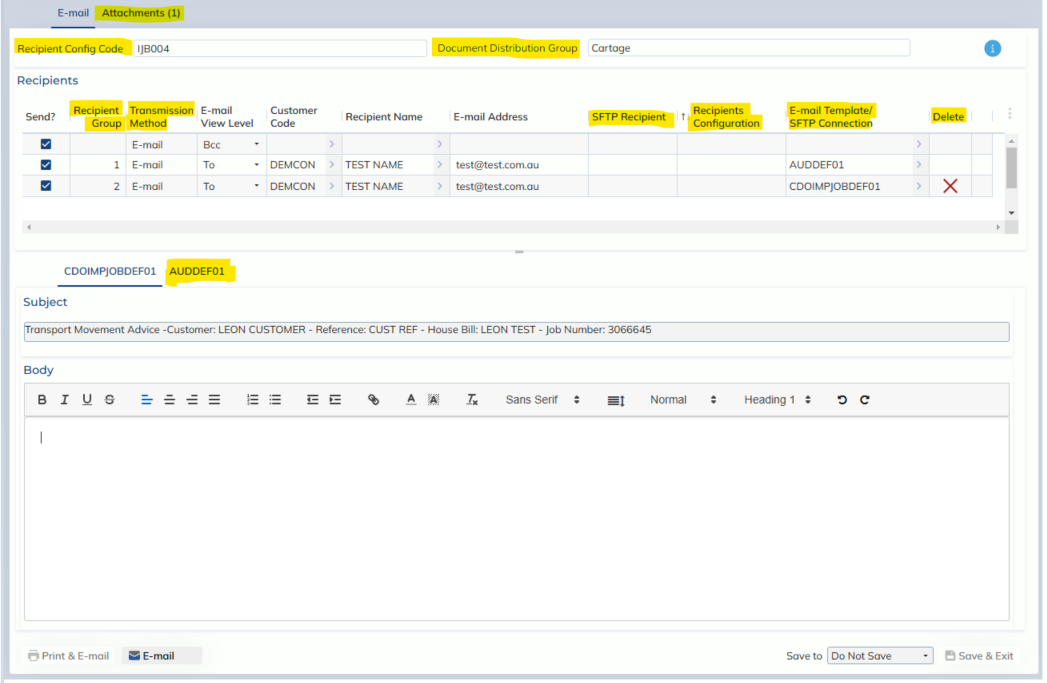
To expand on the changes to a single print, please see the screenshot below with all visual changes highlighted in yellow. An explanation of the changes are also listed in dot points below.
- The attachments section (previously found in the middle of the screen) has been moved its own new tab which is assessible near the top of the screen.
- The Recipient Config Code field in the top left shows you the Recipients Configuration which was selected as the “most specific” match for the job you are printing.
- The Document Distribution Group that is being used for this print can also be seen in the top row of the screen.
- The Recipients section also includes a lot of new fields which display more details about each recipient line. This information such as the Transmission method, SFTP Recipient, Recipients Configuration and Email Template/SFTP Connection code is directly populated from the set up in the Recipients Configuration.
- The Email Template Tab section at the bottom is now able to have more than one email subject and body. Each tab represents an email template which you can view and temporarily edit in the print menu.
Please note there is an information button in the top right of all print menus which can be clicked for a further detailed explanation of the new print menu.
To expand on the changes to the multi print, there are three versions of the multi print listed below. Please see the list below of all prints which fall under these three categories.
- Consol level multi print
- split into different prints per job
- print summary contains Job Number and other details
- Carrier multi print
- split into different prints based on the container level Transport Provider (and sometimes delivery address)
- print summary contains Transport Provider and sometimes Delivery Address
- Invoices multi print
- split up depending on the different invoice level Bill to Party and Invoice Type (Disbursement or Final)
- print summary contains Bill to Party and Invoice Type
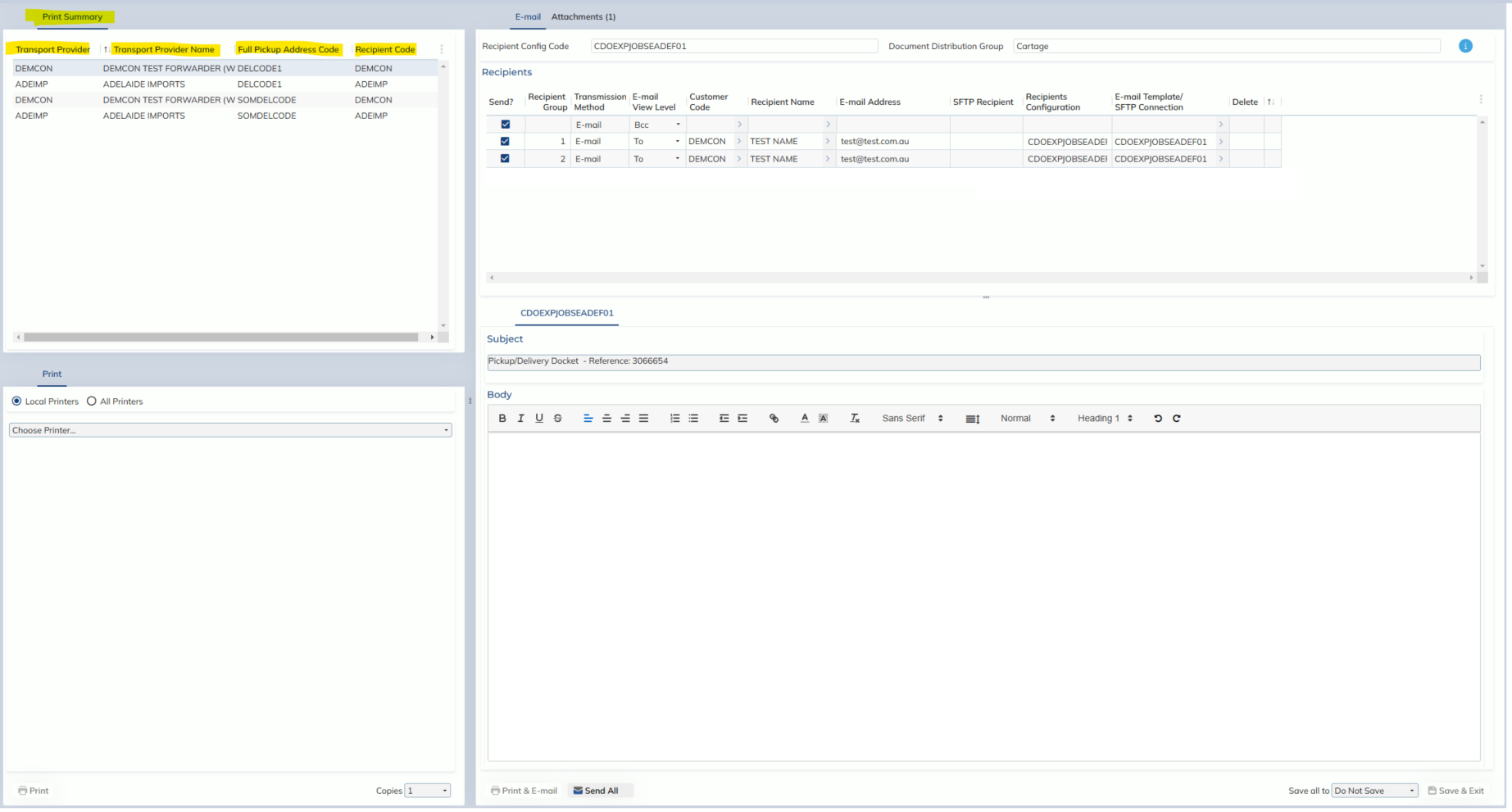
In the print summary, users can click on each line in the table to navigate to the print menu for that line. Each line in the print summary is then considered its own print menu and the print menu on the right hand side will adjust its information according to which line you’ve selected in the print summary. When you click on the Send All button, you will be sending all prints in the print summary at once. If you do not wish not send any print, you will need to untick the send box for all recipients for that print. Please see the below screenshot for an example of a multi print.
Please see below the list of all prints which fall under the 3 categories of multi prints.
Consol multi print
- Arrival Notice
- Delivery Order
- ETA Change
- LCL Cargo Availability
- Pre-Alert
- Customs Container Hold
- Shippers Departure Notice
- Transhipment Notification
Carrier multi print
- Delivery Docket
- Cartage Docket
- Container Weight Declaration
- Transport Movement Advice
- FCL/Container Time Slot Request
- Transport Pick Up Request
Invoices multi print
- Prints with both Final and Disbursement Invoices or to multiple Bill To Parties from the Job level.