In this release, we have added a linking and unlinking process from a Job to a Spot Quote.
Linking a Spot Quote to a Job, via the Job screen
Users can link existing jobs to existing spot quotes via the new link button on the job screens (in the top toolbar, Link->Link Spot Quote).
Selecting this button will open a zoom on the Job screen, that will display spot quotes that:
- Are Accepted
- Are not linked to a job
- Are not linked to a booking (feature coming soon!)
- Have the same:
- Direction as the job
- Job Type (Transport Type on the spot quote screen) as the job
- Job Class (for Sea, Interstate, Miscellaneous Jobs)
- Customer/Shipper (Customer for Import, Shipper for Export)
- Origin Port & Destination Port
- For Export Jobs
- Load Port & Destination Port
- For Import Jobs
At the bottom of the zoom are 2 checkboxes, allowing users to choose whether they want to pull through the spot quote’s charges and exchange rate. NOTE: If users select to pull through charges with the spot quote’s exchange rates, all existing job rates will be updated with the spot quote’s exchange rate.
If users don’t see the spot quote they are looking for, they can press the ‘Show All’ button to search all existing spot quotes for that customer/shipper. Users can only link to spot quotes that share the same direction.
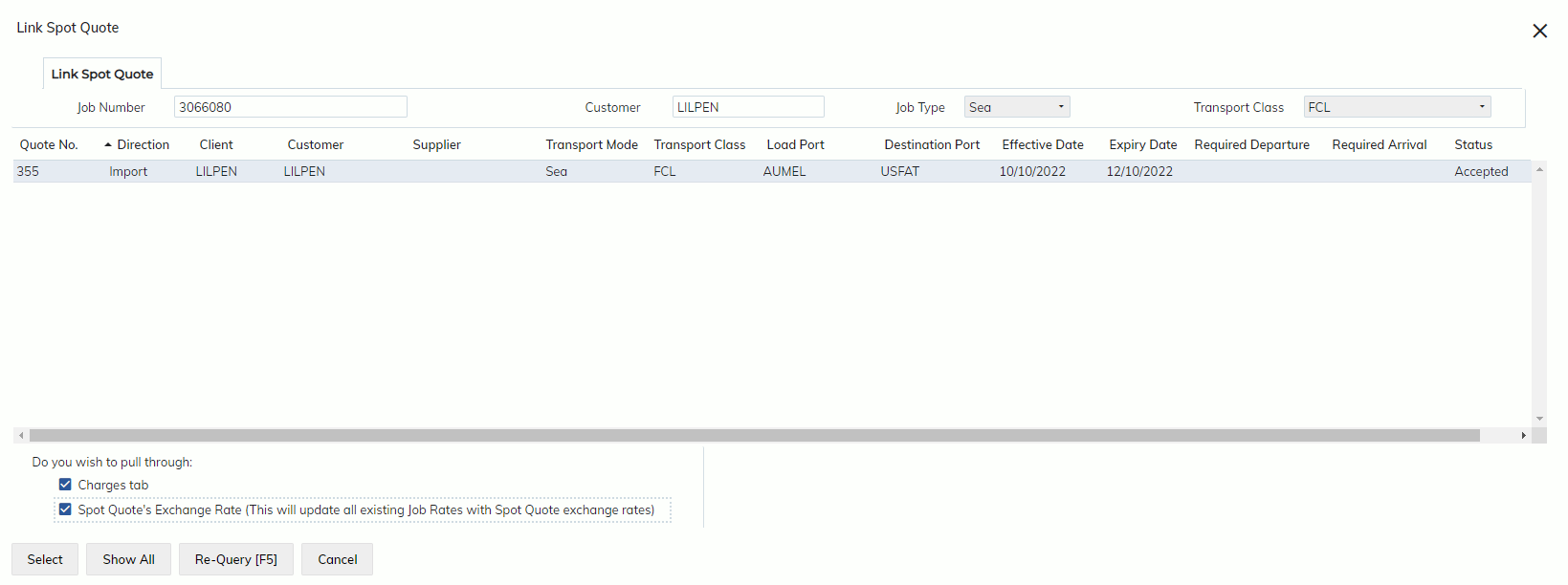
To link a spot quote from the zoom, users can either double-click on a line, or select it and press the SELECT button.
If there are any fields on the spot quote that are different to those on the job, users will see a popup with the list of fields that differ. This list will not include null data in the spot quote, however if there is a field entered in the spot quote that is not entered in the job, the field will appear in the list.
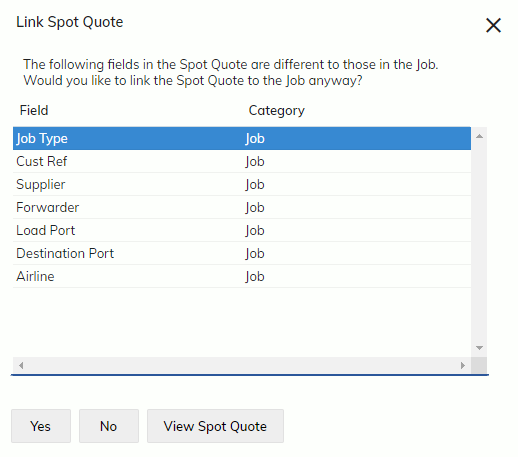
The popup also has a button called ‘View Spot Quote’ allowing users to go directly to the spot quote screen to review the differences. This button is only available if the user has VIEW permissions for the Spot Quote screen. Regardless of the differing fields, users can still link the spot quote to the job.
Once linked, the Job will now have the spot quote number in the top right corner of the screen, presented as a blue link. Users can only click it to go to the spot quote if they have VIEW permissions.
Unlinking a Spot Quote from a Job
When users select the ‘Unlink Spot Quote’ button from the ‘Link->Unlink Spot Quote’ menu option, the system will now make the following checks based on system option settings (if you would like to change these settings, please contact your administrator to raise a ticket to Expedient):
- Are there any charge lines in the job with the status ‘Spot Quote’?
- Are there any invoices against the job with charges from a Spot Quote?
- Are there any unposted invoices against the job with charges from a Spot Quote?
The system option ‘SQ_UNLINKJOB’ has been created to manage access to giving users the ability to unlink spot quotes from jobs that have invoices against them.
This option has been defaulted to allow ALL users the ability to unlink spot quotes from jobs. This can be restricted to allowing only SOME users with a specific user option. Please contact your administrator if you would like to restrict access to this function.