In this release, Expedient will be adding enhanced functionality related to routing in all import registration screens so that users can now register multiple routing legs per job or consol. As part of this update, we will be enhancing other elements of Expedient to complement the new routing function. The changes to old fields and functionality will be explained, information on Expedient’s new fields on each registration screen can also be found below.
Summary of changes:
- Addition of a routing tab in import consols and jobs.
- New Syncing rules between import job and consol registration screens and routing tab.
- Additional fields in the Transport details segment for import consol and job.
- Removal of some transhipment fields in the transport details segment for import consol and job.
- Updated transhipment vessel process via 1-stop ComTrac file.
- New tool tips on the port fields in the Transport details segment for import consols and jobs.
- New version of selected documents which contain routing information.
- Update of the general notifications menu with an option to add routing information to import documents.
- Updated criteria and outputs in the User Configured reports.
- Visibility to routing information via workflow.
- New version of Manifest EDI XSD containing routing tags.
- New events have been added for Journey type, multimodal and route confirmation fields.
- Changes to the Transhipment process
Data Migration upon release:
- As part of our release date, all sites will have past import jobs and consols updated to populate the new routing tab and consol/job registration fields. The new routing tab will also have vessel details populated.
- The Syncing process between the job registration screen and the routing tab will only occur for consol and jobs registered in the last 12 months, if a shipment is updated.
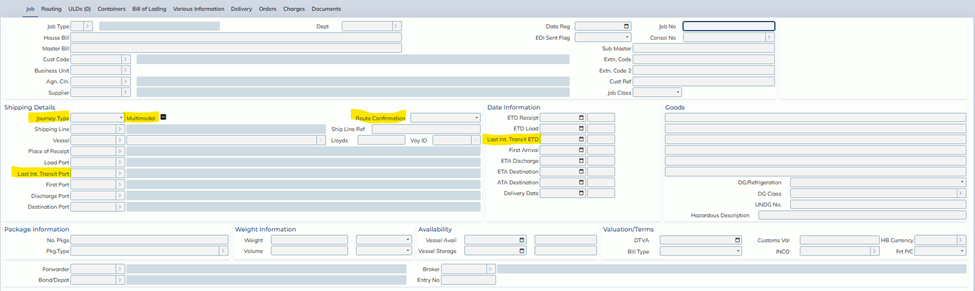
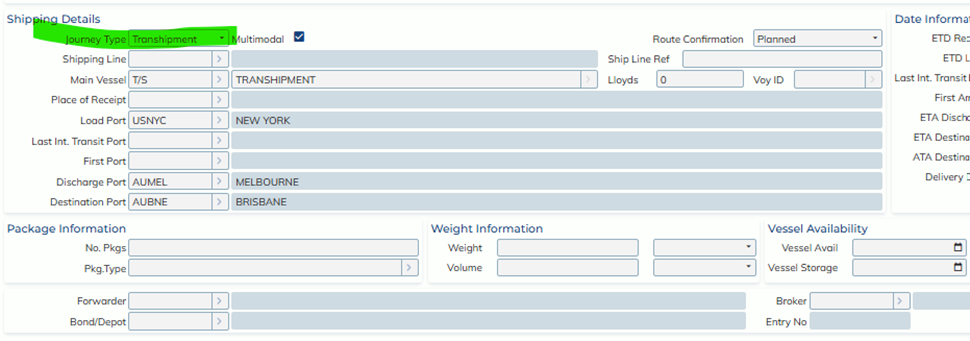
Updated Job Registration Screen with new fields:
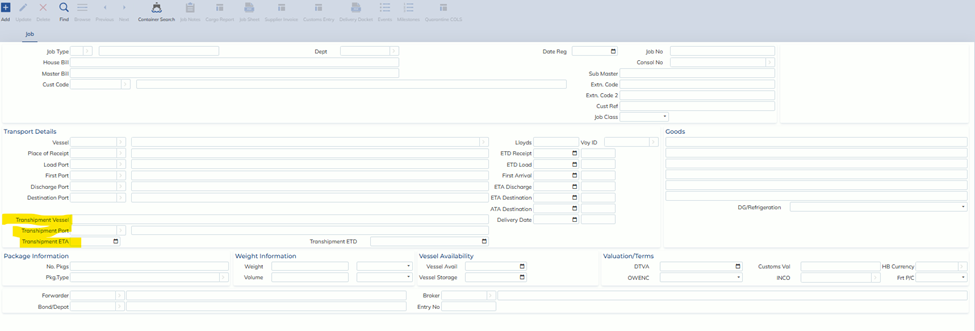
Fields removed from the current job registration screen:
Listed below are the most notable changes to Expedient’s import registration screens:
- New fields in the main tab
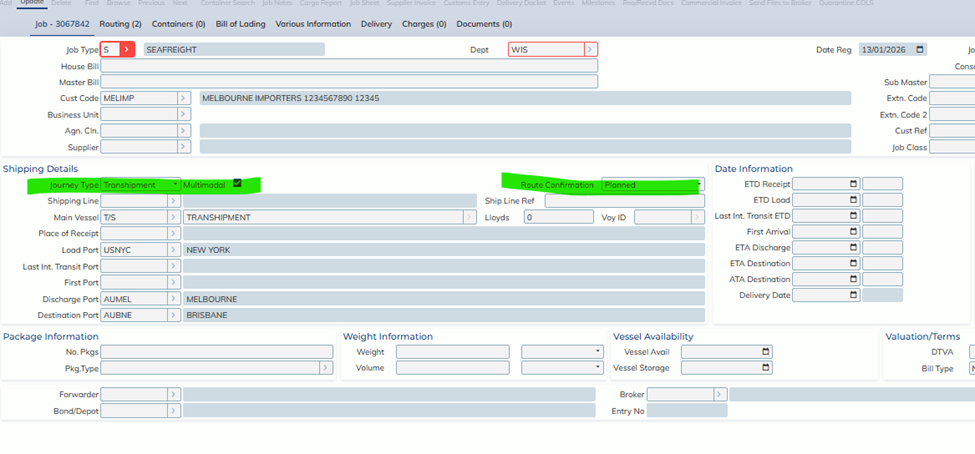
- Journey Type is a new combo box field that allows users to indicate whether a job is Direct or Transhipment. For sea jobs, a Transhipment job will automatically create a Feeder – pre carriage leg and synchronise some fields from the main tab to this leg.
- Multimodal is a tickbox used to indicate whether a job has different modes of transport for its routing legs.
- Route Confirmation is a new combo box field that allows users to indicate whether a job has all legs confirmed or if they are in a planned phase.
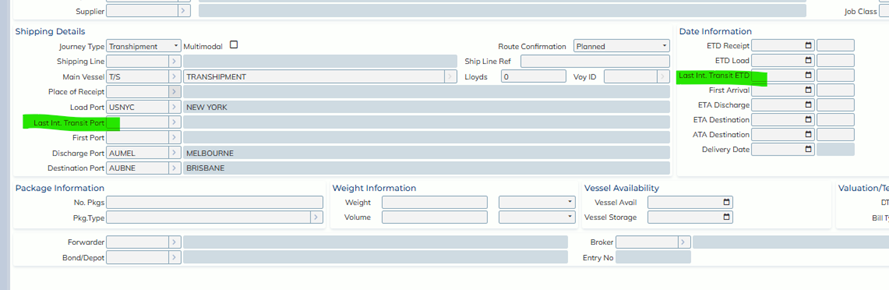
- Last International Transit port and Last International Transit ETD fields are new fields where users can enter the port where the consignment will be transhipped to the main craft along with its ETD. These fields have replaced the current Transhipment Port and Transhipment ETD fields.
- Note: Transhipment Vessel and Transhipment ETA have now been relocated to the new routing tab.
- Port fields have had their tooltips changed to better clarify their use. Please check tooltips by hovering your mouse over the port fields.
- New routing tab
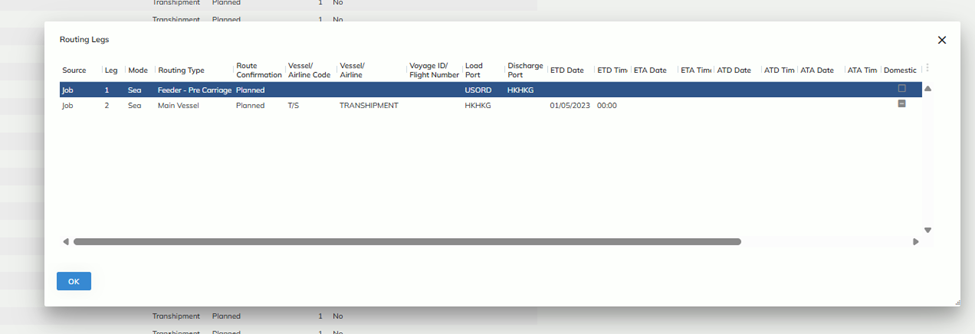
- In all import registration screens, you can find the new Routing tab located next to the main tab. In this tab users can enter the details for all routing legs on a job or consol. Please see the screenshot below and a list of new fields and their definitions:

-
-
- Source: indicates where the information has come from, consol and/or job. When a Job is linked to a consol the shipment data will be synchronized with the consol. At the job level the source will indicate Consol and will follow the current rules for updating of these fields.
- Leg: indicates the sequence number of the journey.
- Mode: indicates the journey mode; Sea, Air, Road or Rail.
- Routing type: indicates the type of journey the craft represents.
- Main Vessel, Main Flight, Feeder-Pre Carriage, Feeder-On Forward, Flight, Journey.
- Route Confirmation: determines if a particular journey is Planned or Confirmed.
- Vessel/Airline Code: Looks up the vessel/airline master to allocate a vessel/airline code.
- Vessel/Airline Name: Applies the vessel name from the vessel code or can be free text.
- Voyage ID/Flight Number: Apply the crafts journey ID.
- Load Port: Port of loading of the journey leg.
- Discharge Port: The discharge port of the journey leg.
- ETD/ETD Time: The Estimated time of departure of the journey leg.
- ETA/ETA Time: The Estimated time of arrival of the journey leg.
- ATD/ATD Time: The Actual time of departure of the journey leg.
- ATA/ATA Time: The Actual time of arrival for the journey leg.
- Domestic: Indicate if the journey leg is a domestic journey. The system will mark this as domestics if the load port and discharge port are in the same country.
- Carrier code: Indicates who the carrier of the journey leg is.
- Carrier name: The name of the carrier which applies to the code.
- Carrier Reference: Any reference number provided by the carrier.
-
- New Synchronization rules:
- Consol to Job:
- When a job is created from a consol, all the information applied in the consol routing tab will cascade to the Job and mark the source as consol. The information that is linked to the consol cannot be updated at the job, only from the consol. Users can add additional legs that relate to the job if required and the source will be marked as Job.
- Job to routing tab:
- When a job is registered and a user marks the job as Journey type = Direct and leaves the last international transit port and Last international transit ETD as blank, the system will apply the main vessel information in the routing tab.
- When a job is marked as Journey type = Transhipment and the Last International Port and Last International ETD is populated the system will create 2 journey legs, a Feeder – pre carriage and a main vessel.
- Journey Type:
- Journey type will automatically be marked as Direct if a user applies a main vessel and does not populate the Last International Port and ETD.
- Journey type will automatically be marked as Transhipment if a user populates the last International Port and ETD.
- Consol to Job:
- Manifest EDI
- Manifest EDI has a new version (version 1.01.00). This version includes new routing tags for the main tab as well as the new routing tab
- Removal of Transhipment Vessel, Transhipment Port, Transhipment ETD and Transhipment ETA fields.
- Transhipment indicators have been replaced on the registration screen with:
- Journey Type.
- Last Int.Transit port.
- Last Int.Transit ETD.
- In the routing tab, the transhipment vessel will now be reflected by routing type Feeder-Pre Carriage if it relates to a transhipment prior to the main vessel coming into AU/NZ. User can indicate a connecting vessel after the main vessel by indicating routing type as Feeder – On Forward.
- All parts of expedient which used to refer to the transhipment fields will now look at the last Feeder – pre carriage leg which is prior to the main leg.
- Transhipment indicators have been replaced on the registration screen with:
- Transhipment Milestones
- Transhipment milestones will now be brought into a job or consol when the Journey Type is set to Transhipment and the Route Confirmation is set to Planned.
- Changing the Journey Type or Route confirmation will automatically refresh the milestone template and automatically complete the transhipment milestone if the job is no longer a Transhipment or Planned.
- OneStop – ComTrac
- OneStop ComTrac files will now update jobs if the job has Journey Type set to Transhipment and the main leg’s Route Confirmation set as Planned along with the other existing checks that previously existed, such as Job number and Container number matching.
- When OneStop successfully confirms the main vessel, the system will update the route confirmation of the main leg to Confirmed.
- Note: This does not apply to the vessel scheduling files that update ETA dates, these will continue to update Consol and Jobs, as per current process.
- User Configured Auto Reports
- The Import Job, Containers and Order level user configured auto reports have been changed to support the new routing fields
- The selection criteria has a new Routing section where fields relevant to routing have been moved to. New fields on the registration screens have been included into this section.
- Output columns for the new routing fields have also been added so that the values can be populated into the reports.
- Notifications and Generic Notifications
- The import Delivery Dockets, Arrival Notice and the Generic Notifications have new forms which will now display the Routing Information.
- To change the Delivery Docket or Arrival notice to print using the new routing form go to the forms maintenance screen.
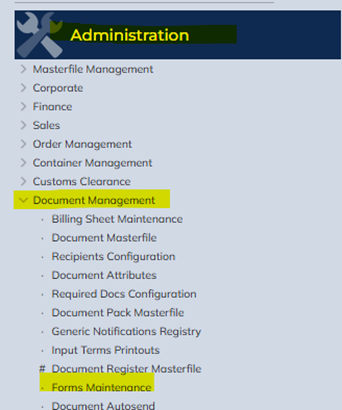
- FCL Delivery Docket – Form Code CS_FDELDOCK, change to “Customs FCL Delivery Docket with Routing”
- LCL Delivery Docket – Form Code CS_LDELDOCK, change to “Customs LCL Delivery Docket with Routing”
- Air Delivery Docket – Form Code CS_AIR_DOCK, change to “Customs Delivery Docket with Routing”
- Consol Delivery Docket – Form Code IMP_S_DELDOC, change to “Import Sea Consol Delivery Docket with Routing v3”
- Arrival Notice – Form Code IMP_S_ARR_NOTICE, change to “Import Sea Arrival Notice with Routing Version 5”
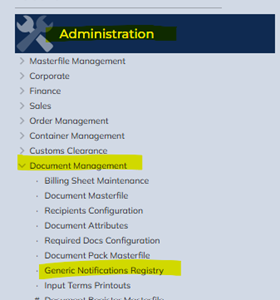
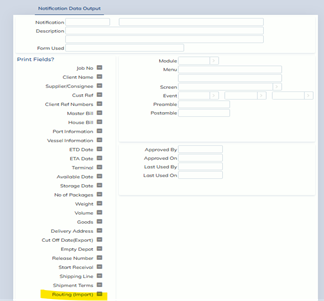
- Generic Notifications can have routing information included by going to the Generic Notifications Registry screen and finding the notification then ticking the “Routing (Import)” option
- Partner Portal
- The partner portal now has a routing tab added which is directly copied from the job registration screens. The routing tab details are not editable from the partner portal as it is a view only.
- Workflow
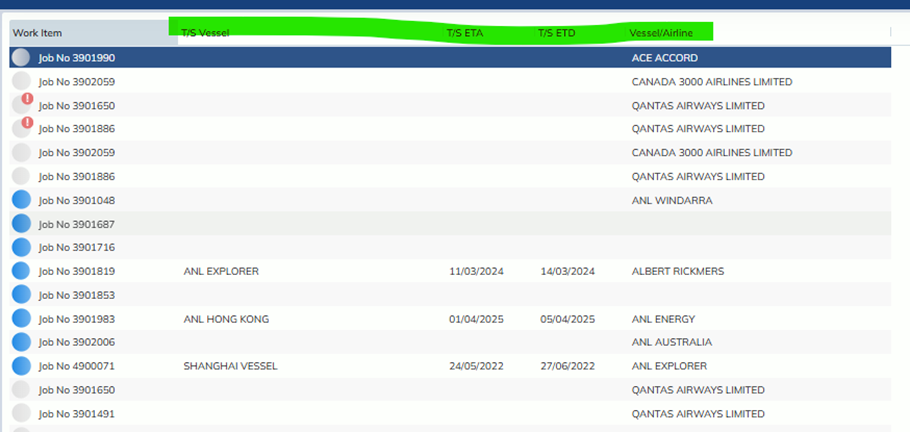
- Workflow has had the following columns added to the workflow screen:
- Journey type
- Multimodal
- Route Confirmation
- Last International Transit Port
- Last International Transit ETD.
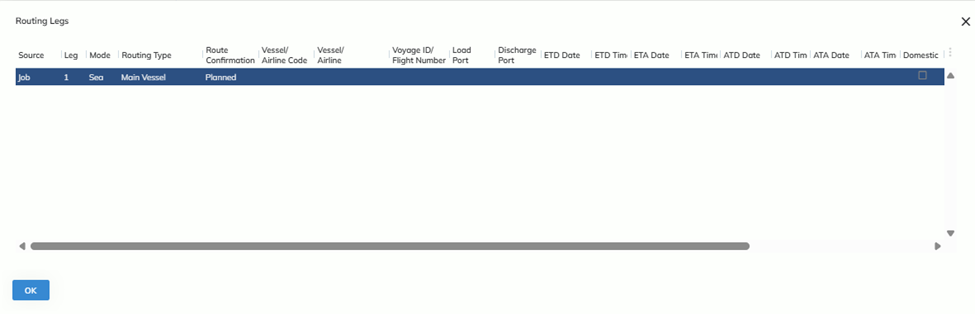
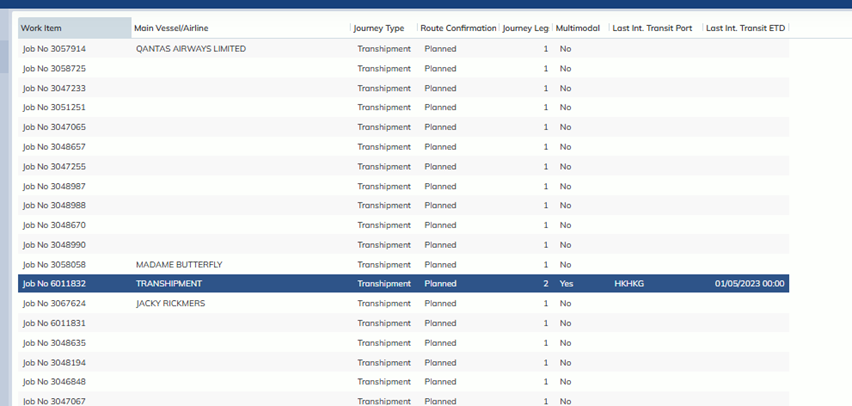
- A new View Routing button has been added to the workflow screen, where users are able to view the routing tab without having to access the job registration screen, as per screen shots.
-
- Workflow has had the following columns added to the workflow screen:

Changes to the Transhipment process:
Past process:
- One-stop Comtrac: User would apply the vessel name “Transhipment” into the vessel field symbolizing an unconfirmed vessel. Once One-stop confirmed a vessel a file would be received related to the job and update the vessel name and voyage number to the confirmed vessel bound to AU.
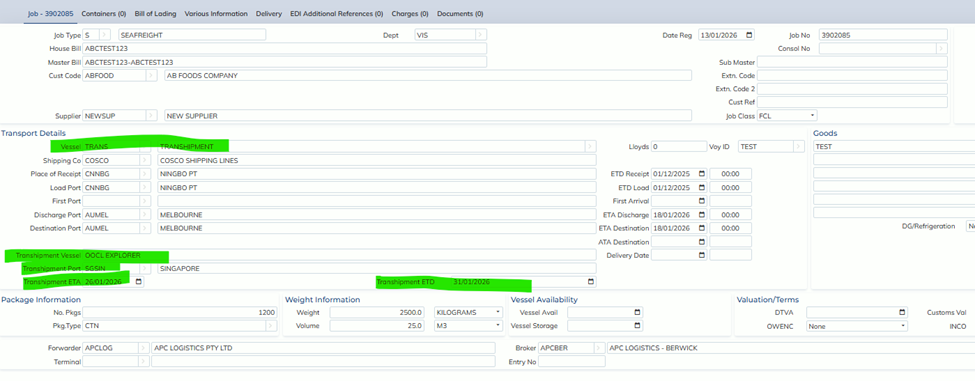
- Some sites would choose to use the transhipment fields, such as vessel, port, ETA and ETD to track transhipment information.
-
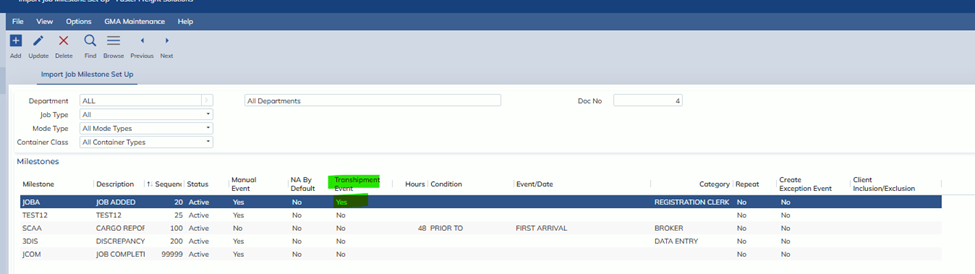
- Workflow milestones that have the Transhipment Event column marked as YES, would appear in a user’s workflow based on the vessel name field containing the word Transhipment.
-
- Workflow screen would contain T/S Vessel, T/S ETA, T/S ETD to review Transhipment details.
-
New process:
- One-Stop Comtrack: The updated process will now consider the new Journey Type and Route confirmation fields. When Journey Type = Transhipment and Route confirmation = Planned the one-stop process will validate the vessel and voyage, if they match with what has been applied in the job it will change the Route confirmation to confirmed. If the vessel details do not match, the one-stop file will update the vessel and voyage number and change the route confirmation to confirmed. The new process no longer relies on the vessel name field containing Transhipment.
-
- Transhipment fields such as Transhipment Vessel, T/S ETA, have now been migrated to the routing tab. Transhipment vessel is now called the Feeder – pre carriage vessel. If you have a domestic transhipment occurring, you can now apply this as the Feeder – On Forward vessel. The job registration screen still retains key transhipment indicators such as Last International Transit Port and Last International Transit ETD.
-
- Workflow milestones that have the transhipment event column marked as YES, would appear in a user’s workflow based on the new Journey Type = transhipment. If Journey Type = Direct, the transhipmnet milestones will not come into user workflow.
-
- The Workflow screen has columns T/S Vessel, T/S ETA and T/S ETD removed and replaced with Journey Type, Route confirmation, Journey Leg count, Multimodal, Last International Transit Port and Last International Transit ETD.
-
- The workflow screen also has an additional function added which allows user to review all the routing legs without accessing the job.
-
- The journey type field will automatically default to transhipment or direct based on what information is added in the job registration screen. If a user populates the Main Vessel and does not populate the last international port, the Journey type will default to direct. If a user adds a last international transit Port, the journey type will default to transhipment.
- When the journey type is defaulted to direct, the main vessel name, voyage number, load port, discharge port, ETA and ETD will be added as a main vessel leg in the new routing tab.
- When the journey type is defaulted to transhipment the system will create a Main vessel leg in the routing tab with the vessel name, voyage number, last international transit port (as load port), discharge port, ETA and last international transit ETD (as load ETD). As well as a Feeder-pre carriage leg with the load port, last international transit port (as discharge port) and last international transit ETD (as discharge ETD).
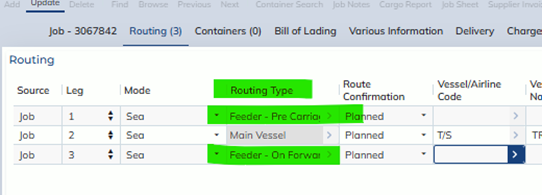

Note: The transhipment vessel name will need to be added into the routing tab for the Feeder-Pre Carriage by the user.