In this release, as part of an enhancement to Booking EDI, we have updated the EDI Configuration screen to be able to load in a new version of the Booking XML. This new version will allow Export Bookings to be created via EDI and allow for more information to be loaded for Import Bookings:
- The Administration -> Interface -> EDI Configuration -> EDI Configuration screen has been enhanced to include Booking EDI
- There is a new “Booking EDI” combo box that allows the configuration to accept Booking EDI files
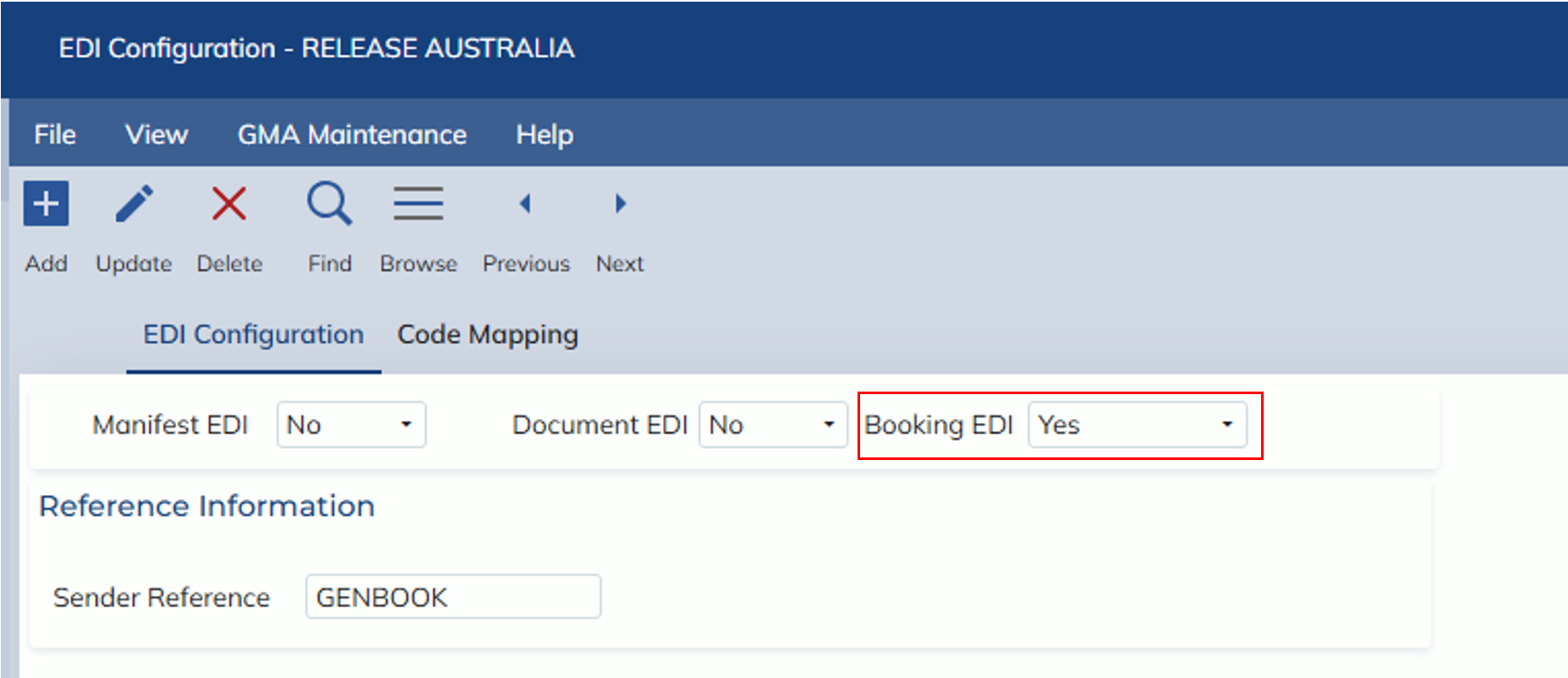
- Once the “Booking EDI” combo box is marked as Yes, the Booking subtab is shown
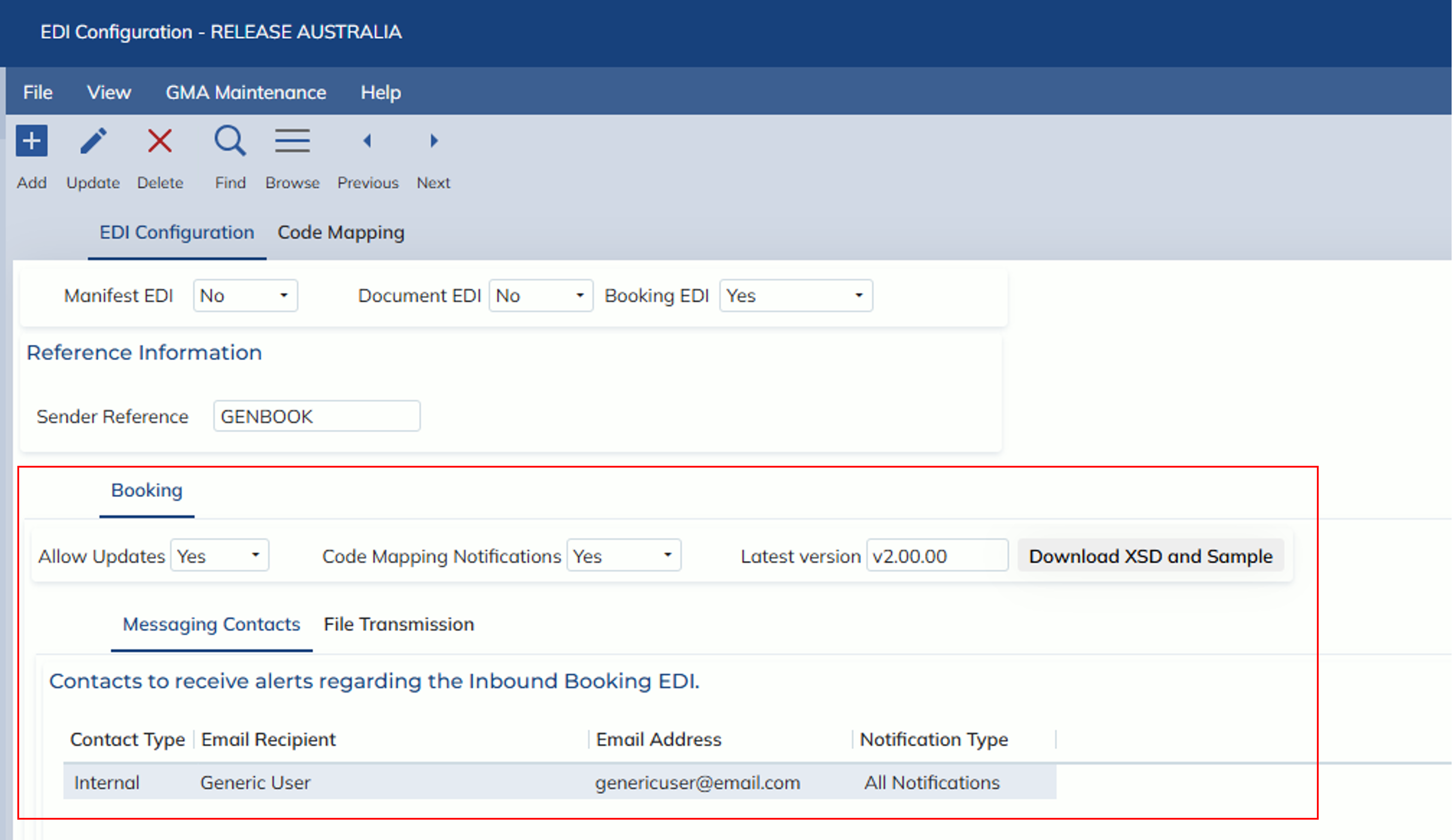
- The following options are shown
- The “Allow Updates” configuration determines if the Booking EDI process is allowed to update existing Bookings
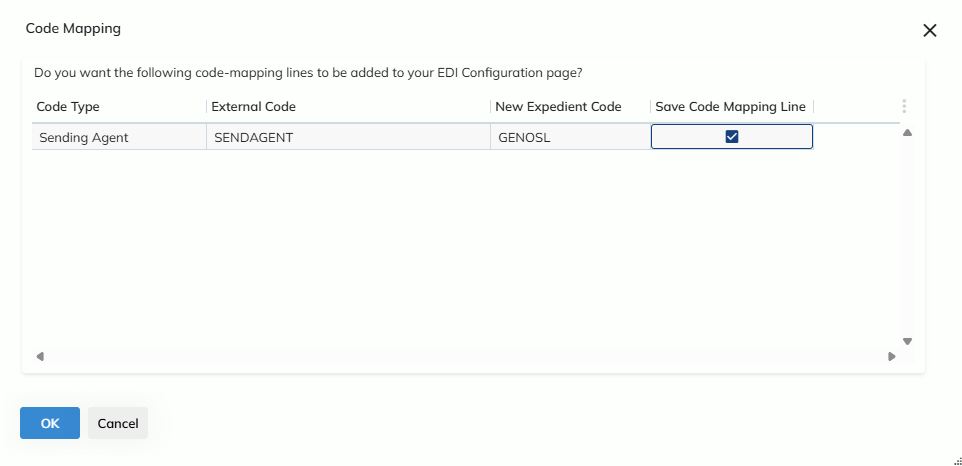
- The “Code Mapping Notifications” determines if the Code Mapping Notification modal is shown
- If this option is selected, then the prompt will be shown to confirm the mapping of the values in the XML file when a Booking is saved
-
-
- If this option is not selected, then the prompt will not be shown and the mapping will be created automatically on save
- When a user clicks the “Download XSD and Sample” button, a zip file containing the Booking EDI XSDs and a sample Booking EDI XML file will be downloaded
-
- Within the Booking subtab, there are 2 additional subtabs
- Within the Messaging Contacts subtab, users can enter a user or email address to receive notifications on Booking EDI file loads for this configuration
- If the Contact Type is Internal, then the Email Recipient zoom can be used to select the User
- If the Contact Type is Manual, then the Email Recipient field is locked and any email address can be entered into the Email Address column
- There are 3 options within the Notification Type that can be selected for that Messaging Contact, which are:
- All Notifications
- Error Notifications
- Success Notifications
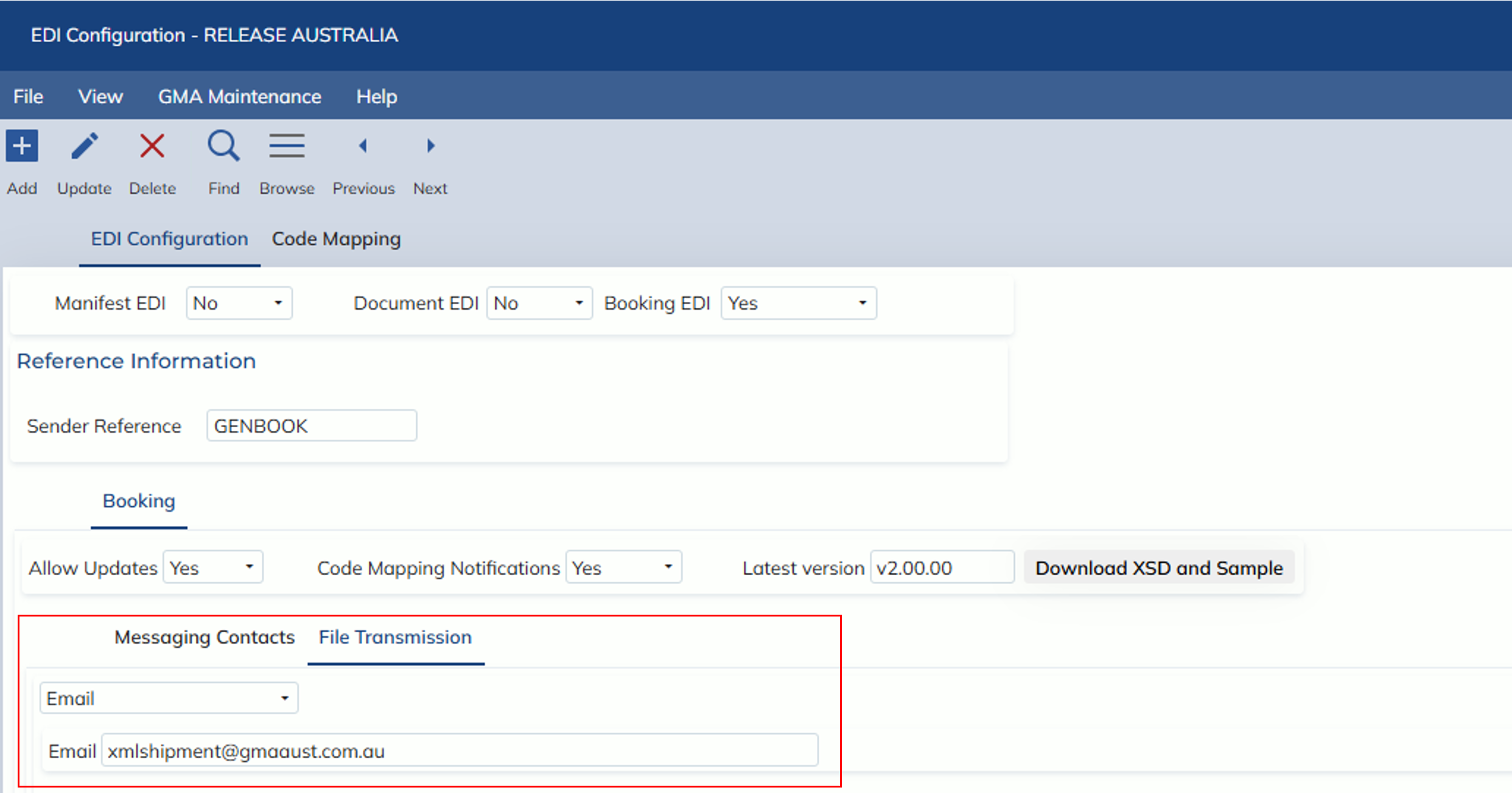
- Within the File Transmission subtab, users can enter in the Transmission details that Expedient will use to receive the Booking EDI files
- Within the Messaging Contacts subtab, users can enter a user or email address to receive notifications on Booking EDI file loads for this configuration
-
-
- The Transmission methods currently available for use are:
- SFTP
- Write to Server
- The Transmission methods currently available for use are:
-
-
-
- When the Email option is selected, the email address that the Booking EDI files can be sent to will be displayed. If an email address does not appear, please contact support
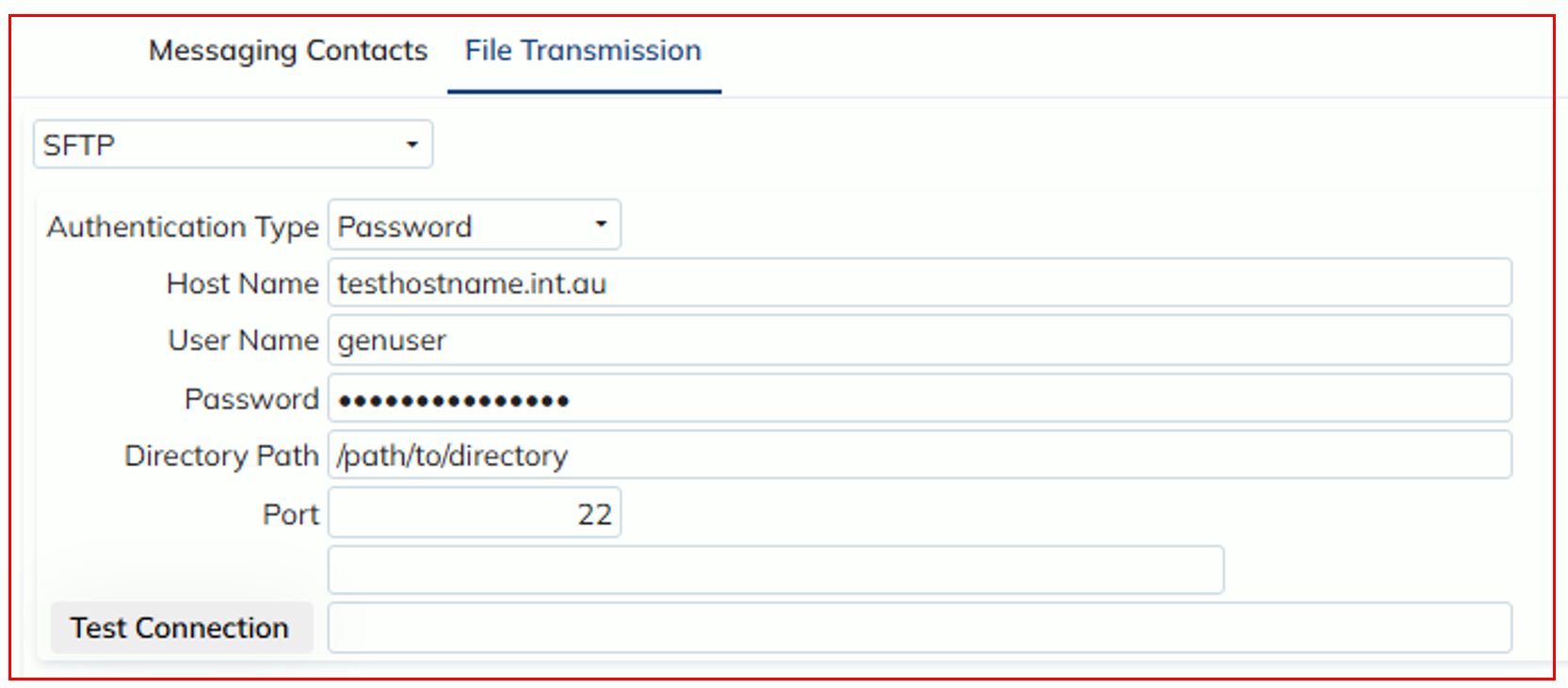
- When the SFTP option is selected, users can select the 2 Authentication Type methods to use:
- Password
- SSH Key
-
-
-
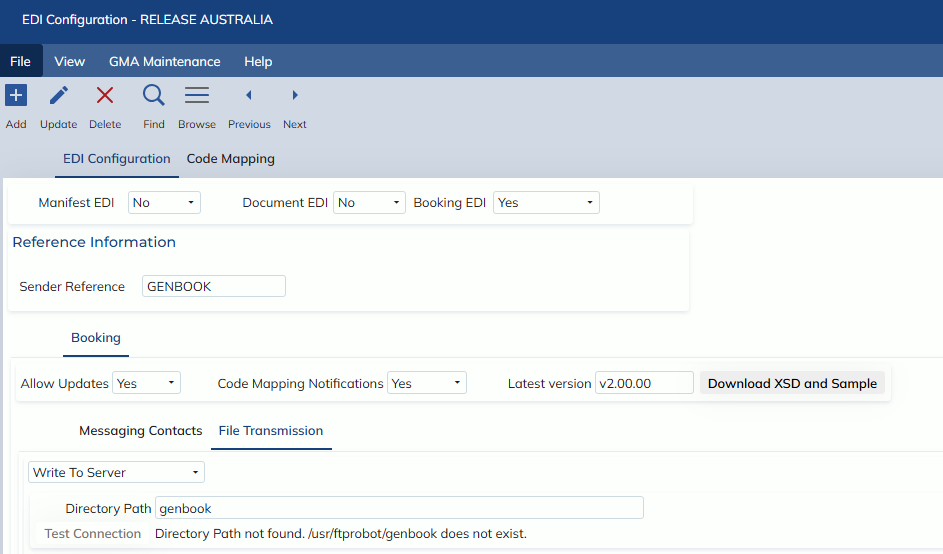
- When the Write to Server option is selected, users can enter in the directory that the files will be dropped onto the server
-
-
-
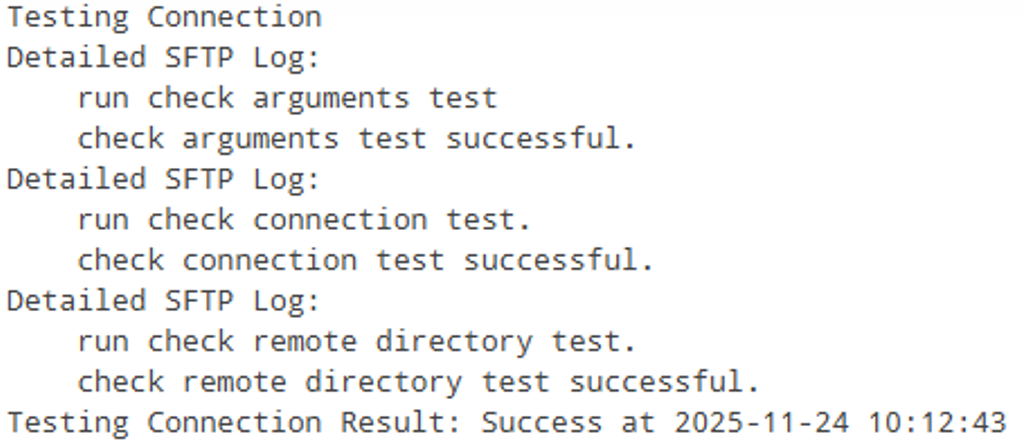
- For both the SFTP and Write To Server options, the Test Connection button is shown to allow users to test the connection. The results will appear like below
-
- The Administration -> Interface -> Inbound -> Import Booking EDI Setup screen has been removed
- The old Booking EDI setups in Administration -> Interface -> Inbound -> Import Booking EDI Setup have been migrated into the EDI Configuration screen and will still continue to load in the old Booking EDI files