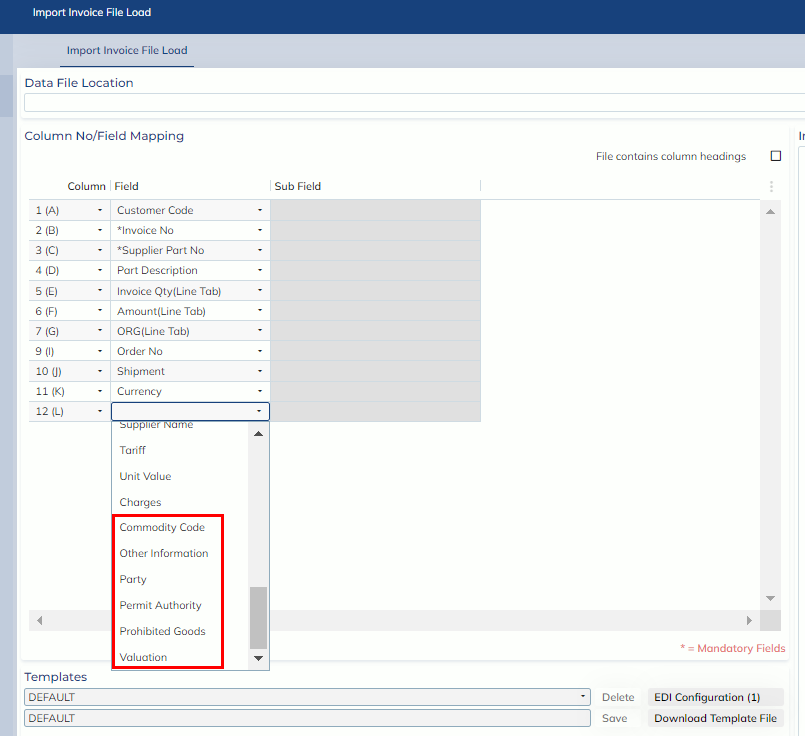
In this release, users are allowed to load invoice line charges and codes into the downloaded supplier invoice screen.
How to load Charges to invoice line
- Go to Customs Processing -> Tools -> Supplier Invoice File Load
- Add the Charge into the mapping.
-
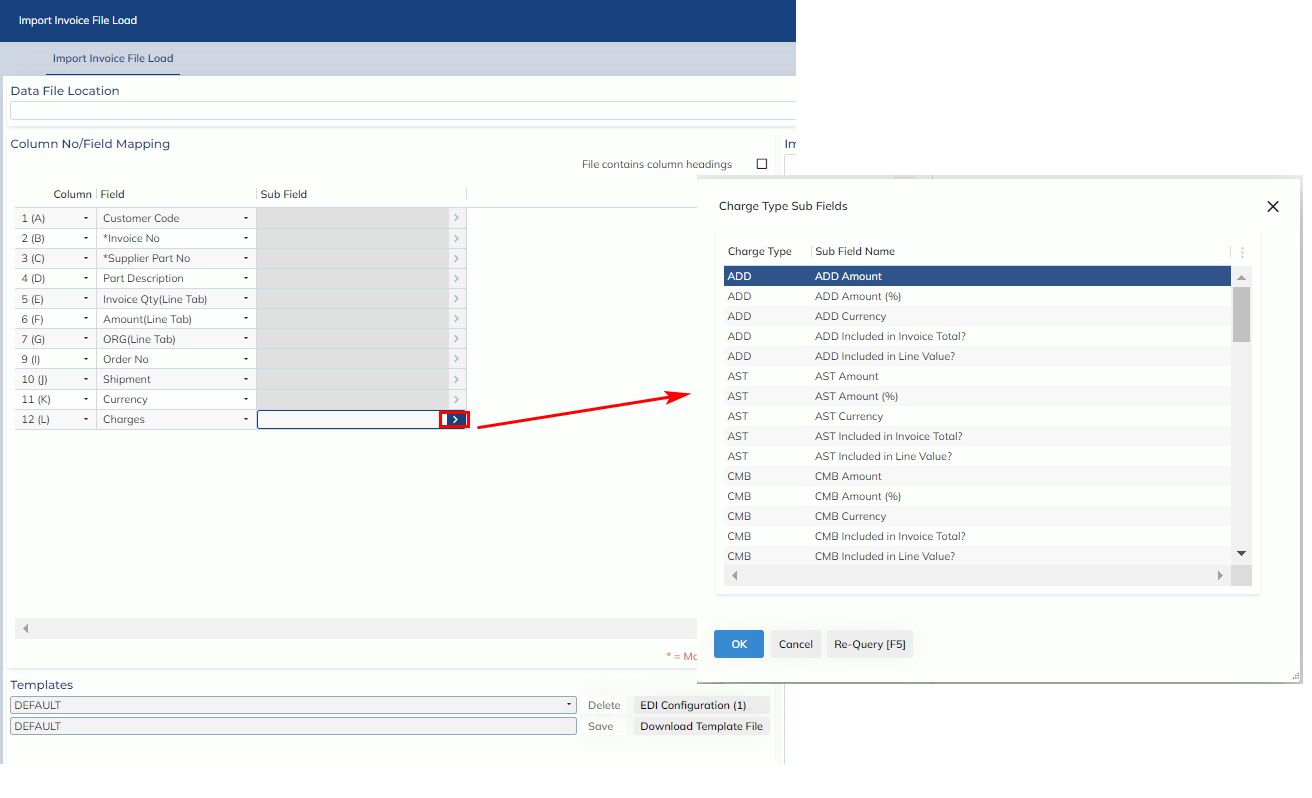
- After the Charges is selected, click the zoom button on the Sub Field. Select the charge type you would like to map.
-
- Note:
- You can map the charges with % or Monetary Amont.
- If you map Monetary Amount, you should also map the respective currency.
- Each Charge element in the sub field can only be mapped once.
- If the “Included in Invoice Total” or “Included in Line Value” is not specified, the default option will be populated based on the incoterm on the invoice header.
- You can map the charges with % or Monetary Amont.
-
How to load Codes to invoice line
- Go to Customs Processing -> Tools -> Supplier Invoice File Load
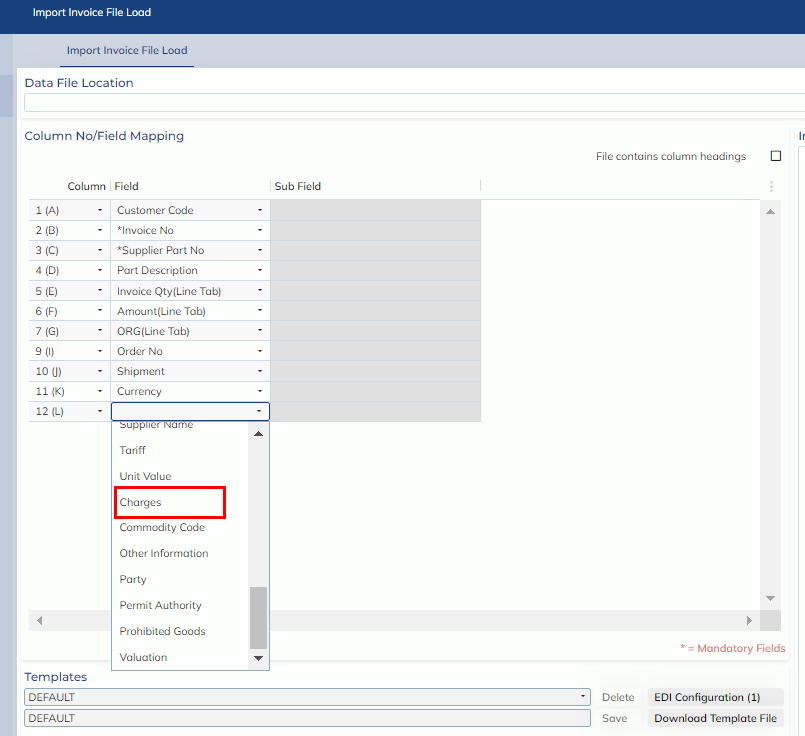
- Add the Code Type into the mapping.
-
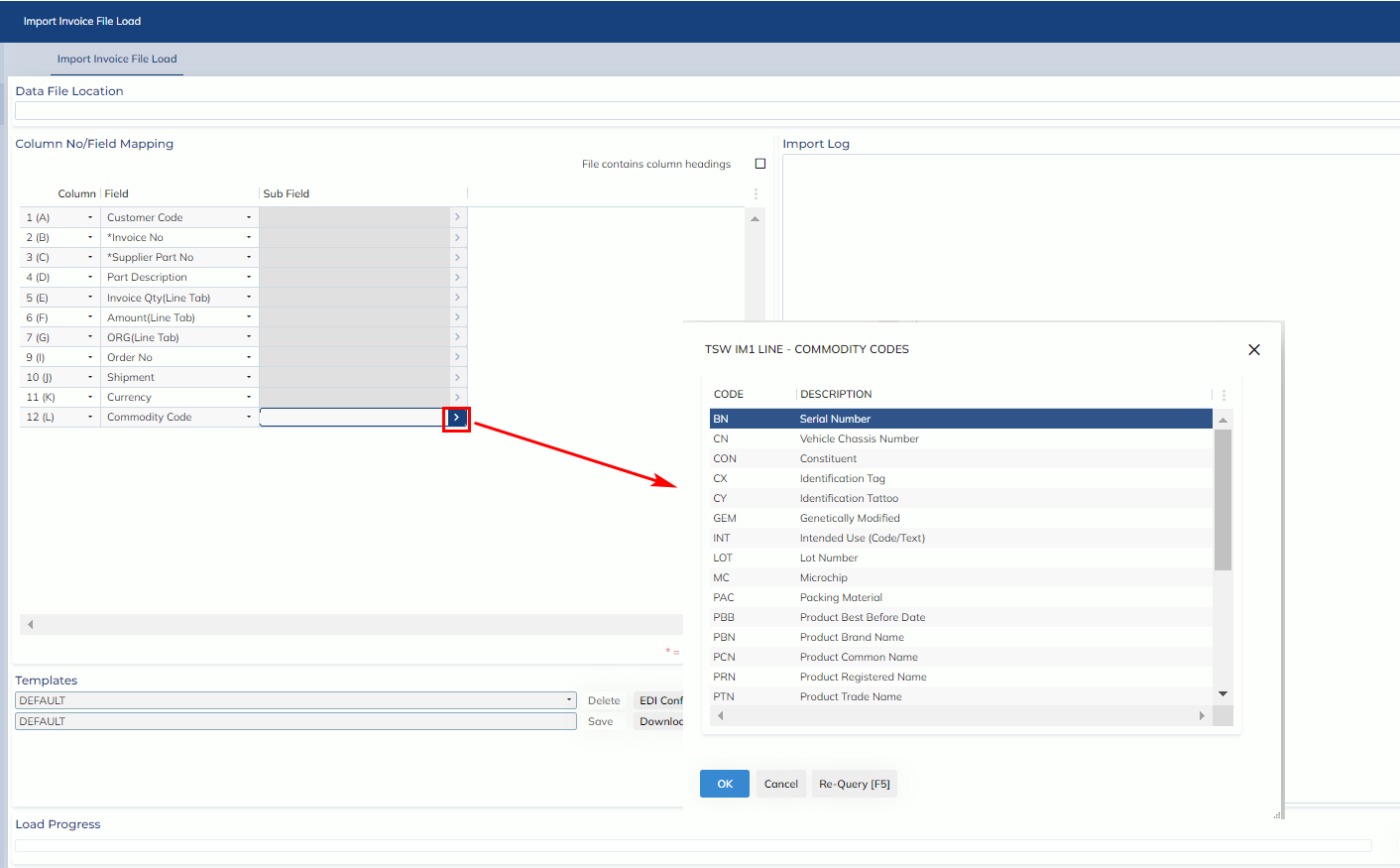
- After the Code Type is selected, click the zoom button on the Sub Field. Select the code you would like to map.
-
- Note:
- Each Code in the sub field can only be mapped once.
- If the Code doesn’t require any value e.g. (Prohibited Goods>New). You can enter Y/Yes or N/No/Blank as the value.
- Y/Yes – The process will add the code to the invoice line
- N/No/Blank – The process will NOT add the code to the invoice line.
-