In this release, we have updated and improved the current invoice reversal process for Debtor and Creditor invoices. This update aims to reduce the manual work currently required to reverse invoices while also expanding the types of invoices users can reverse.
Users will now be able to invoices that are:
- Local and FXC currency invoices
- Credit Notes
- Manual Debtor Invoices and General Ledger Creditor Invoices
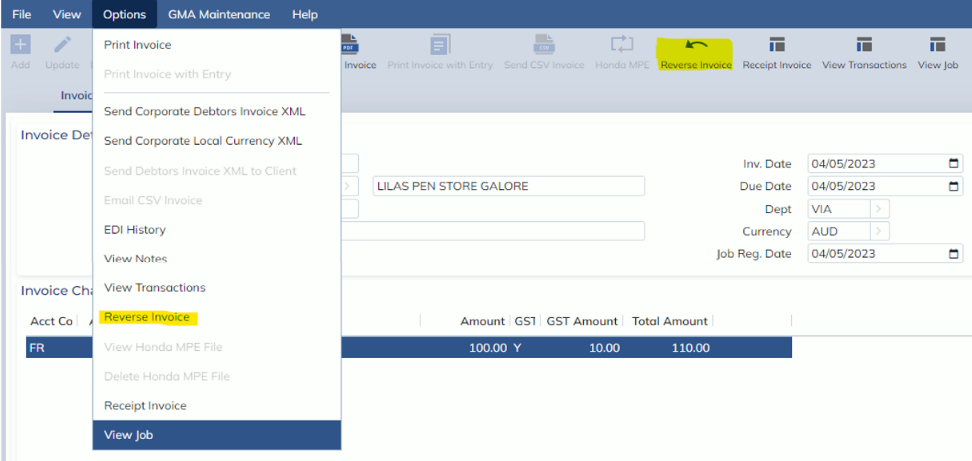
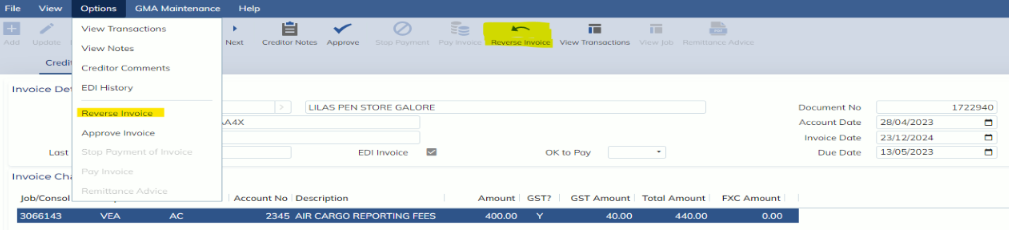
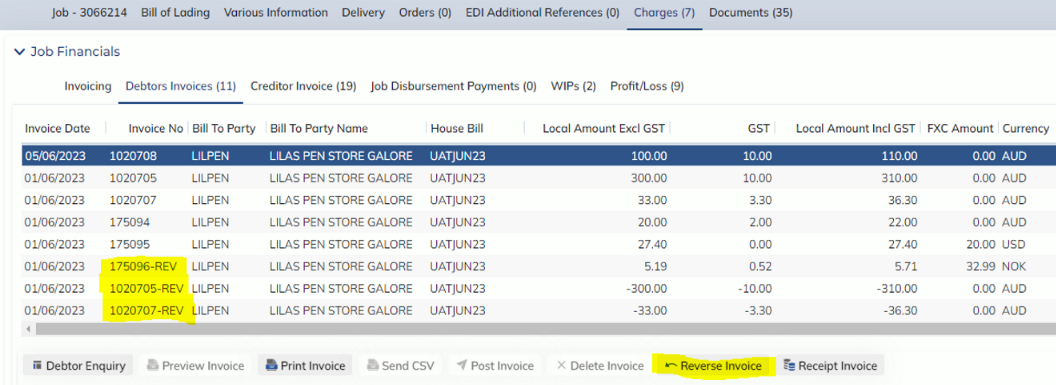
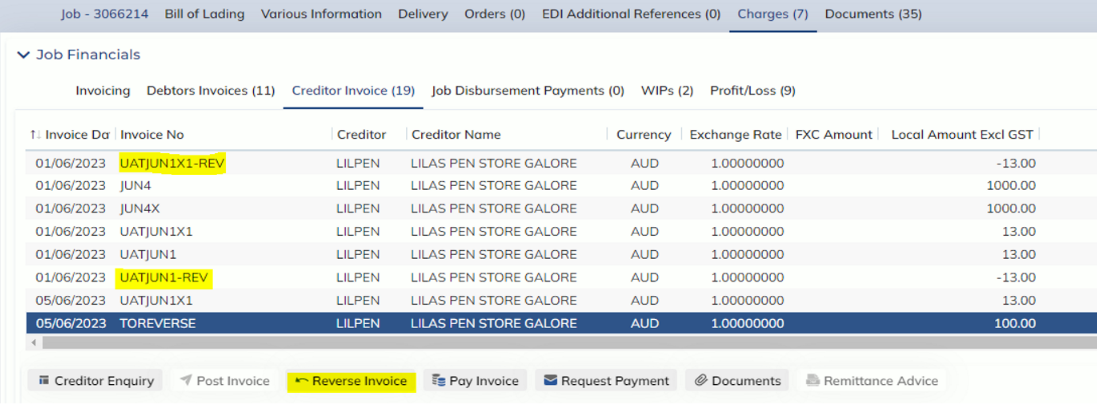
The reversal button will be available in 2 places for both Debtor and Creditor invoice;
- Import/Export Job Registration screen->Charges tab-> Debtor/Creditor Invoice subtab =>Reverse button Debtor/Creditor
- Invoice Enquiry screen => Reverse toolbar button OR under the Options menu
Users will now be able to restrict access to these reversal buttons through a new User Option, accessed from the Users Masterfile->Options->User Options= DEBTORREV / CREDREV. If you would like to revoke ALL access to the reversal function, please contact Expedient Software team with the above User Option codes to remove all access.
Important Note:
Previously, when the ‘Reverse’ button was selected, an Unposted Invoice was created for users to review and Post. This has been largely updated (see below). For users who had been using the current reversal buttons to raise Credit Notes, rest assured a new Credit Note function will be coming soon!
What happens when I reverse an invoice?
The ‘Reverse’ function works by automatically creating an identical invoice using the inverse charge
amounts. This reversal invoice can be identified by the ‘-REV’ suffix at the end of the invoice number. The
reversal invoice will use the same invoice and due dates, but the Accounting date will be the date of the
reversal.
This invoice is posted and paid against the original invoice using a zero-payment. This payment will be for
$0.00, but full pays both the original invoice and the reversal invoice against each other. This payment
will use the date of the reversal and be auto-reconciled.
For example:
I have a $100 invoice that contains 2 charge lines: Freight = $90.00 and Duty = $10.00. I
have mistakenly entered the wrong date.
When I select the ‘Reverse’ button for this invoice, an identical invoice is made for $-100.00, that has the
same 2 charges for Freight $-90 and Duty $-10 (so, -100 + 100 = 0.00, cancelling each other out).
The reversal invoice can be easily identified by its ‘-REV’ suffix. Both invoices are marked as Paid, against
the same receipt record for $0.00. This receipt record has the ‘Reconciled’ checkbox as ‘ticked’.
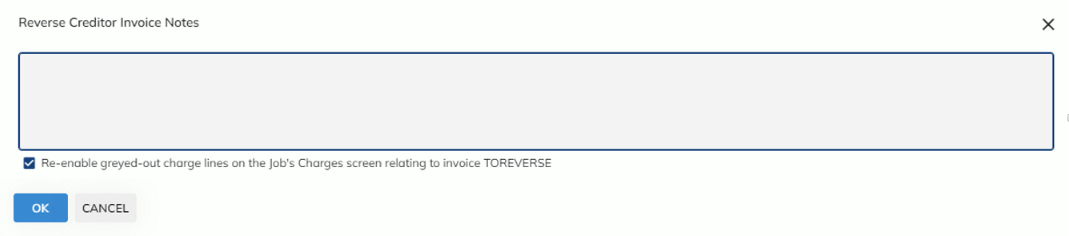
Re-enabling greyed-out charge lines on the Job Charges screen
If an invoice was made by entering their charges on the Job’s Charges screen, selecting the ‘Reverse’ button will give users the option to re-enable the greyed-out charge lines in the Job’s Charges screen.
This means, if this option is selected, users will be able to re-use the same charge lines to create a new invoice, saving time re-entering them. If this option is left UNTICKED, the charge lines will remail greyed-out and unavailable for editing.
In Summary:
Invoices can only be reversed if:
- Invoice Status = Posted
- Payment Status = Unpaid
- Invoice has not been previously reversed or a reversal invoice This will have the suffix ‘-REV’.
- System option is turned ON
- Debtor Invoice reversal system option: DEBTORREV
- Creditor Invoice reversal system option: CREDREV
- If you cannot see the reversal button, please contact Expedient to turn these options ON for you.
- If you can see the reversal button but it greyed out with the tooltip: “You do not have permission to perform this action. Please contact your administrator.’, the reversal function is only enabled to specific users and can be restricted in the Users Masterfile->Options->User Options screen.
Debtor Invoice Enquiry screen:
Creditor Invoice Enquiry screen:\
Job Registration->Charges tab:
Debtor Invoices:
Creditor Invoices:
Please see User Manuals for more information.