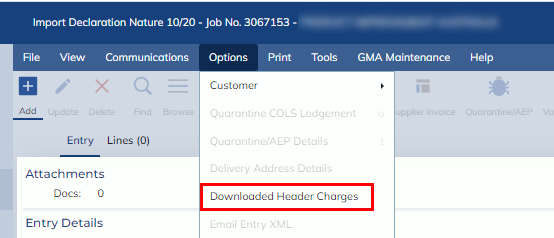
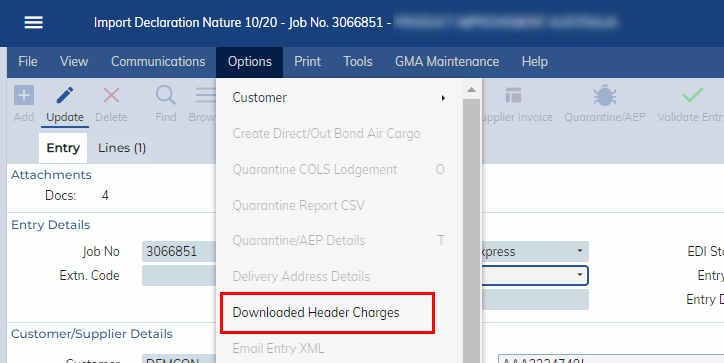
In this release, Expedient will allow users to load downloaded entry header charges to the system. When the entry is prepared, the relevant charges will populate to the import declaration by matching Master Bill & House Bill. You can also select the downloaded entry header charges manually on import declaration (update mode)>Options>Downloaded Header Charges.
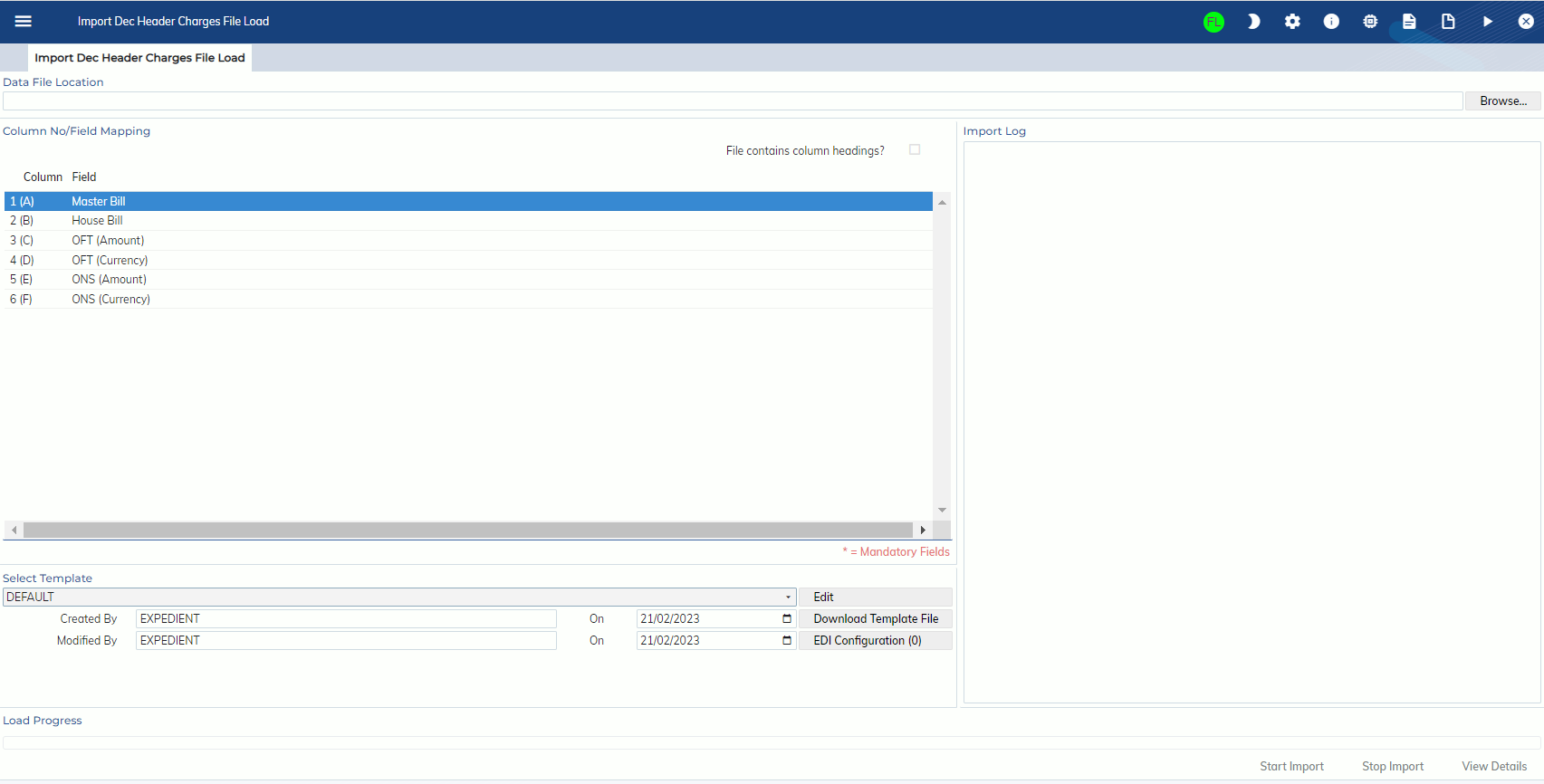
Load downloaded entry header charges
Users can go to Customs Processing -> Tools -> Import Dec Header Charges File Load to load the download entry charges.
The file can be xlsx, xls or csv format.
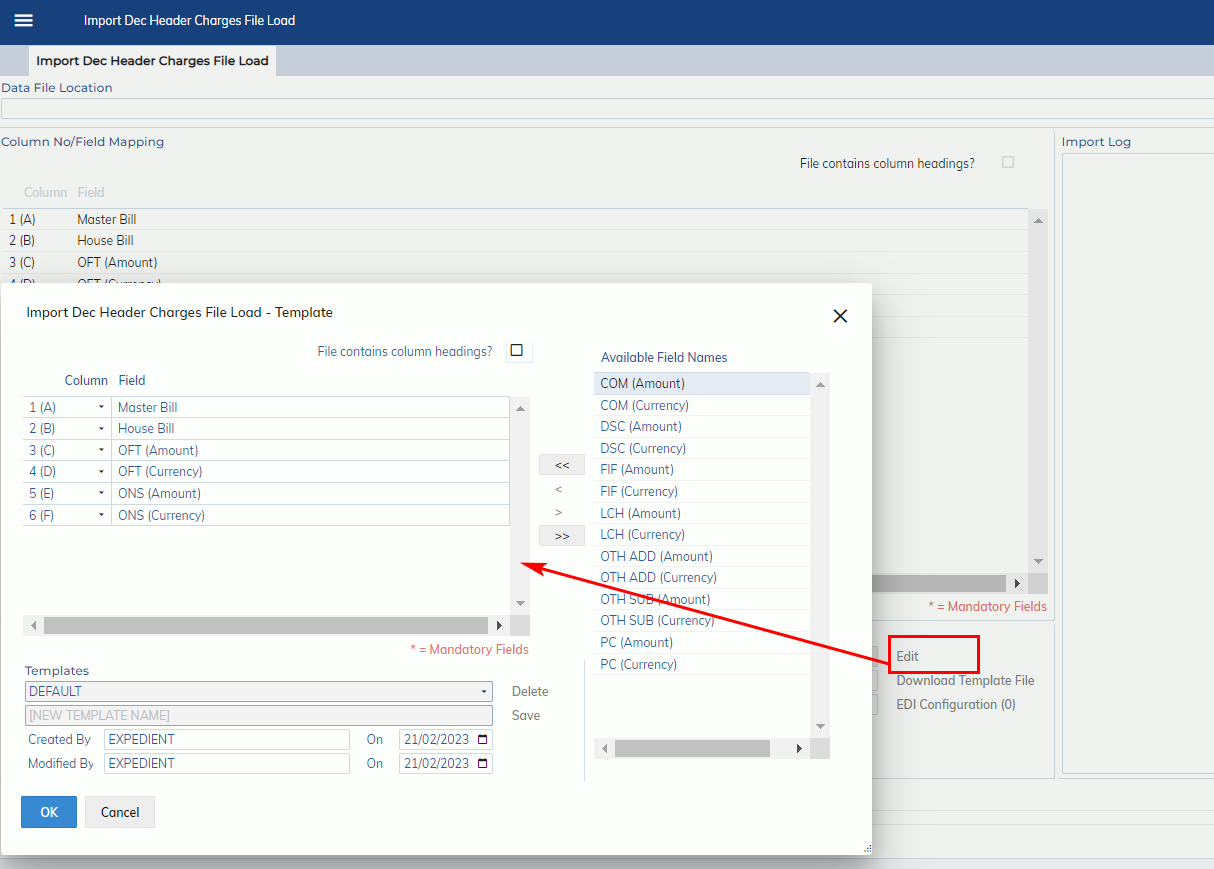
Edit Button
You can click the “Edit” button to set up your mapping template. You can set up multiple templates. Just specify the template name and click “Save” Button.
“Download Template File” Button
When the button is clicked, it will download the template file for the selected template. You can use the template to load entry header charges.
“EDI Configuration” Button
1. The user should be authorised to update the downloaded entry charges EDI Configuration. If you would like anyone to enable to set up EDI configuration, please go to Administration -> Corporate -> Users Masterfile -> User Options and tick the user option “DLD_CHG_INTF”.
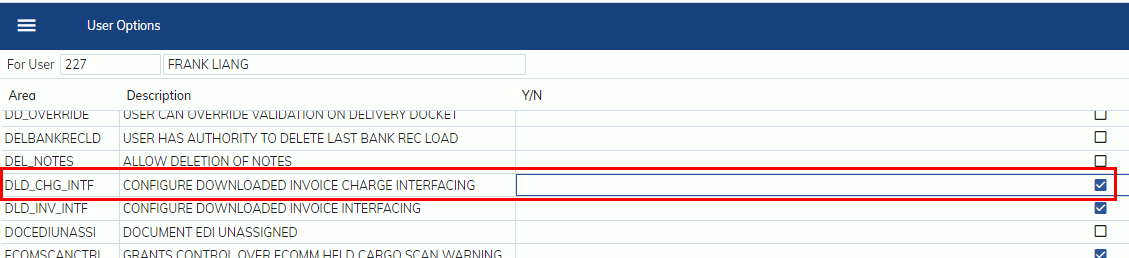
2. After the user option “DLD_CHG_INTF” is ticked, the user is able to see “EDI Configuration” button on Customs Processing -> Tools -> Import Dec Header Charges File Load to load the download entry charges.

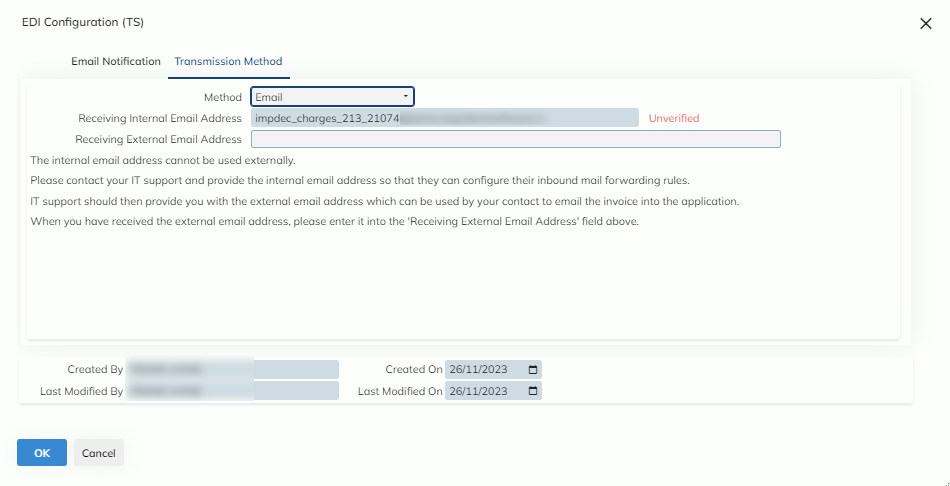
3. When “EDI Configuration” button is clicked, you will see the window below. (You can have different EDI configurations for different templates)
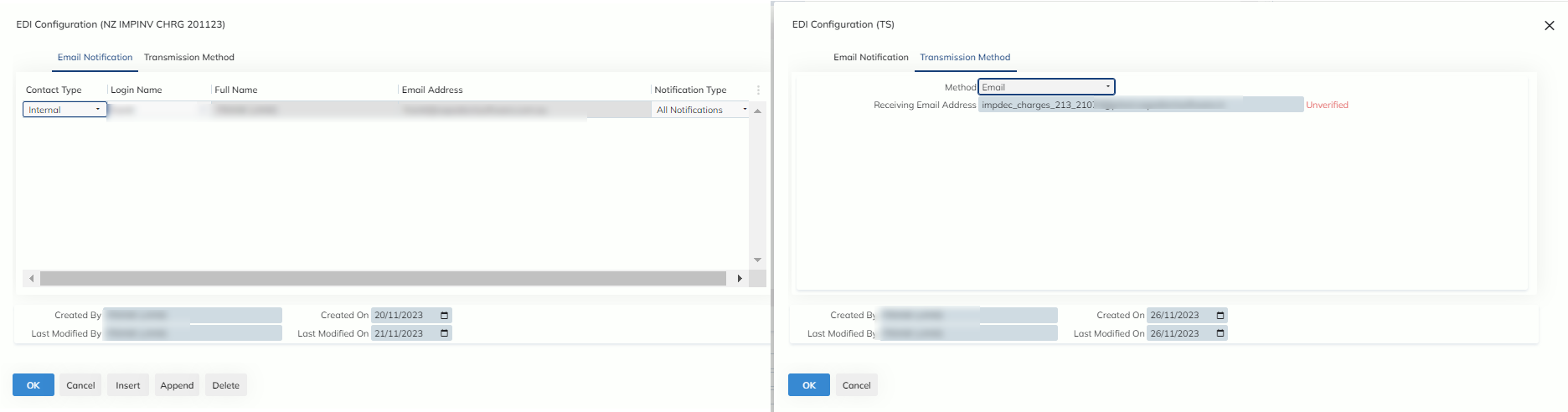
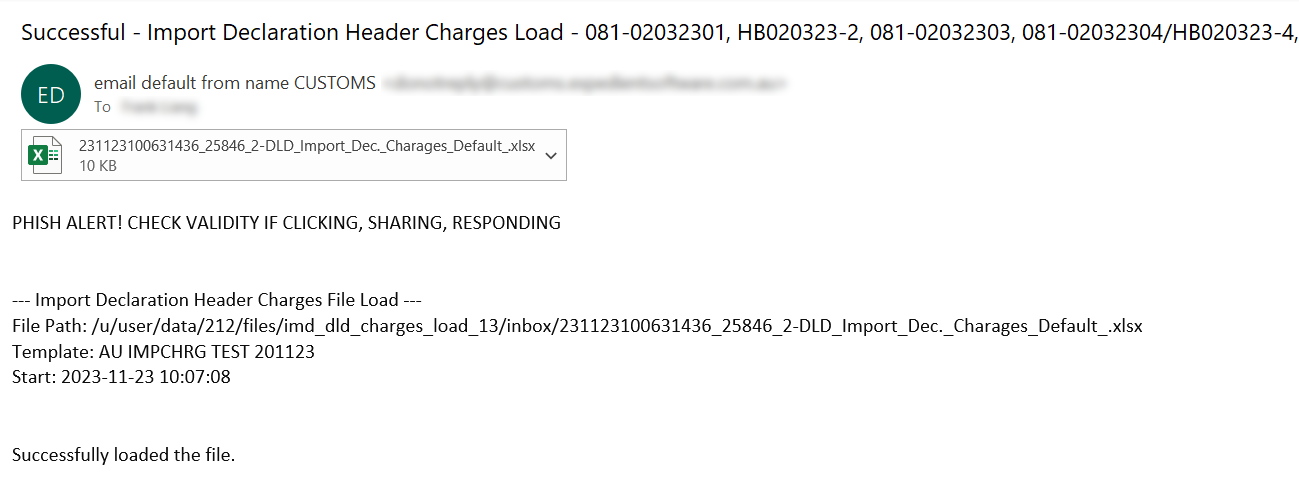
- Email Notification: It allows you to enter internal or external email addresses. When the file is processed, the load result will be sent to the nominated users.
-
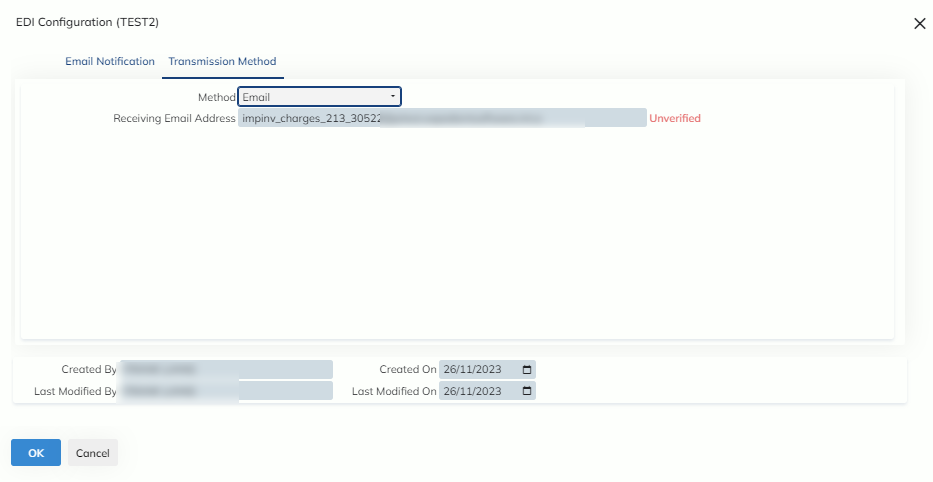
- Transmission Method: It allows users to select email or SFTP.
-
Email:
- For non-Expedient-owned server, a “Receiving Internal Email Address” will be generated. You have to ask your IT Support to create an “External Email Address” and configure inbound mail forwarding rules to “Internal Email Address”. You can register “External Email Address” to EDI Configuration and send a supplier invoice file to the “External Email Address”. When the file is processed, it will be updated to Customs Processing -> Tools -> Downloaded Imp. Decl. Header Charges.
-
- For non-Expedient-owned server, a “Receiving Internal Email Address” will be generated. You have to ask your IT Support to create an “External Email Address” and configure inbound mail forwarding rules to “Internal Email Address”. You can register “External Email Address” to EDI Configuration and send a supplier invoice file to the “External Email Address”. When the file is processed, it will be updated to Customs Processing -> Tools -> Downloaded Supplier Invoices.
-
- For non-Expedient-owned server, a “Receiving Internal Email Address” will be generated. You have to ask your IT Support to create an “External Email Address” and configure inbound mail forwarding rules to “Internal Email Address”. You can register “External Email Address” to EDI Configuration and send a supplier invoice file to the “External Email Address”. When the file is processed, it will be updated to Customs Processing -> Tools -> Downloaded Imp. Decl. Header Charges.
- SFTP:
- You can transmit the supplier invoice file via SFTP. The process will pick up the file from the SFTP location specified. When the file is processed, it will be updated to Customs Processing -> Tools -> Downloaded Supplier Invoices.
-

-
View Downloaded entry header charges
Users can view the downloaded entry header charges via Customs Processing -> Tools -> Downloaded Imp. Decl. Header Charges
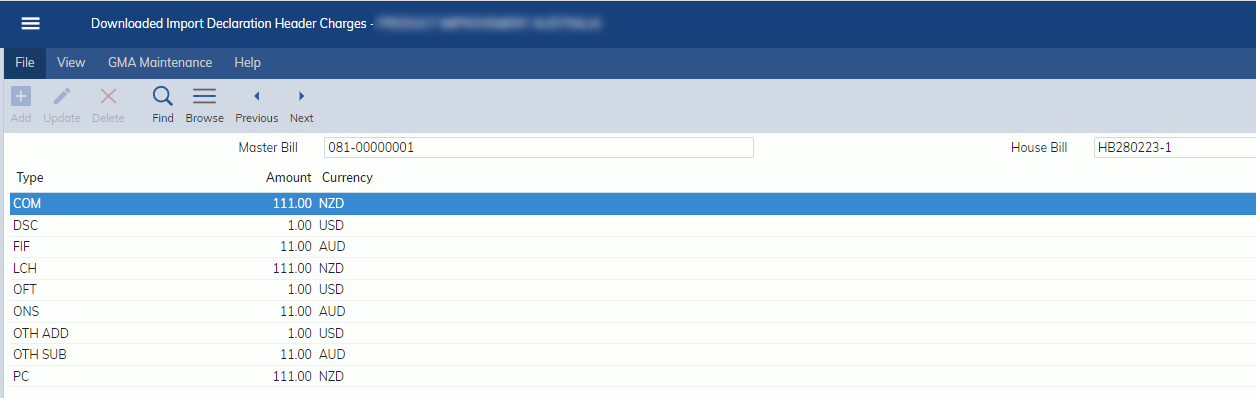
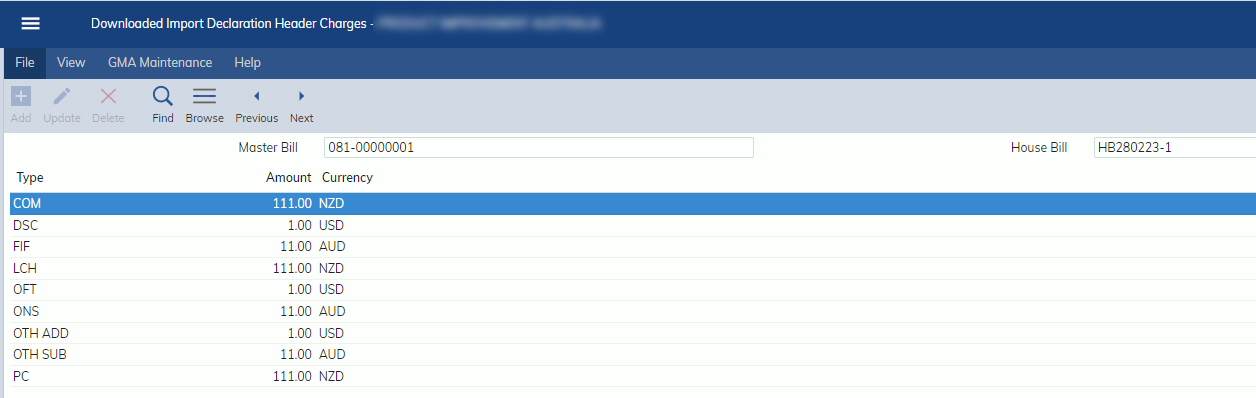
When the Import Declaration is created, the import declaration header charges will populate to the import declaration automatically.
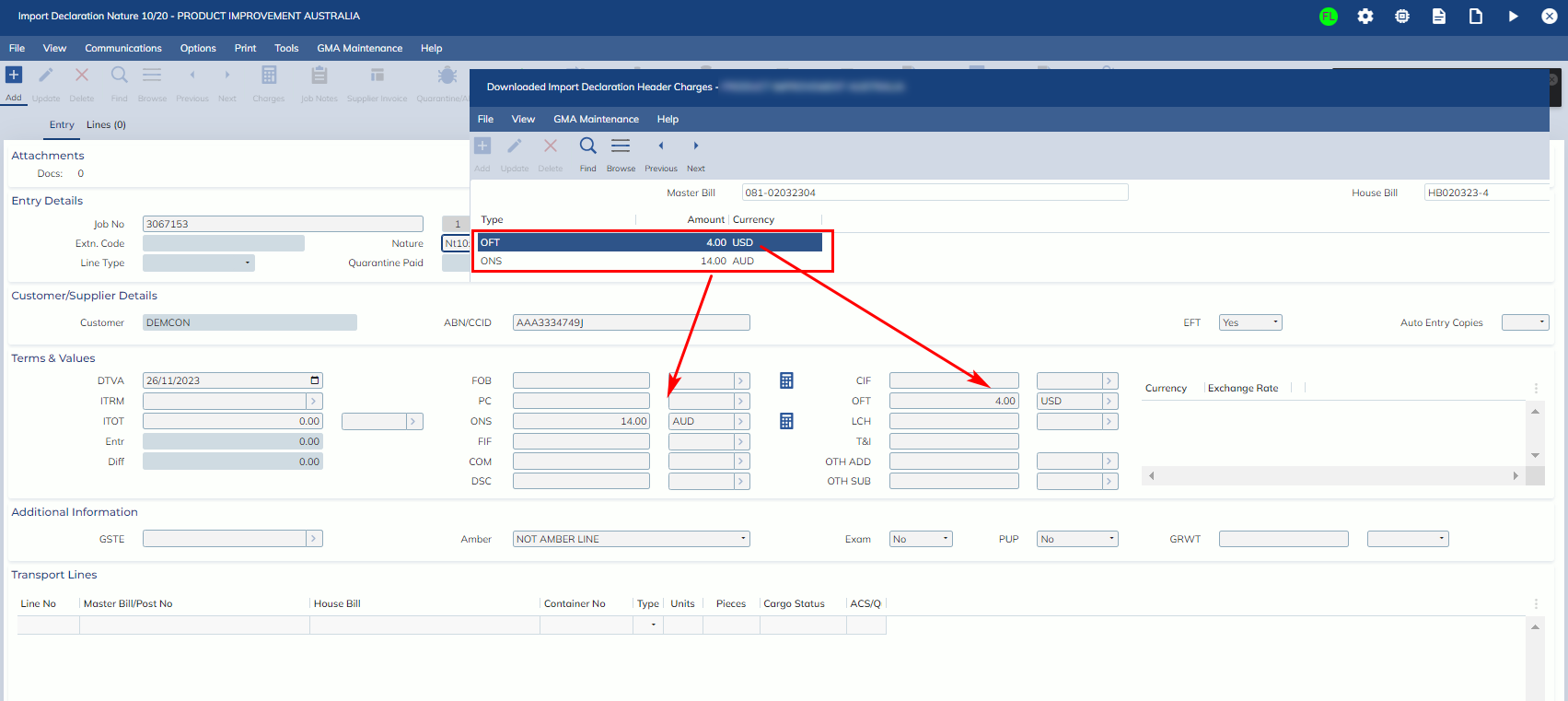
You can also manually add import declaration header charges via Import Declaration>Options>Downloaded Header Charges.