In this release, users are able to submit a quarantine COLS lodgement via Expedient Application.
The Expedient COLS lodgement system is replicating the functions in the COLS online portal, therefore, it allows users to
- Submit a new lodgement
- Submit new documents
- Submit an enquiry
- Submit a reassessment
- Check Payment Status
P.S. The “Direction Reissue” function is out of the scope of COLS API. The department of Agriculture requires users to request for direction via COLS online portal or biosecurity portal if required.
Where to find the function?
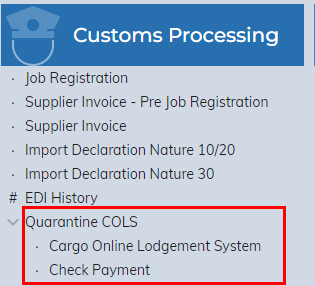
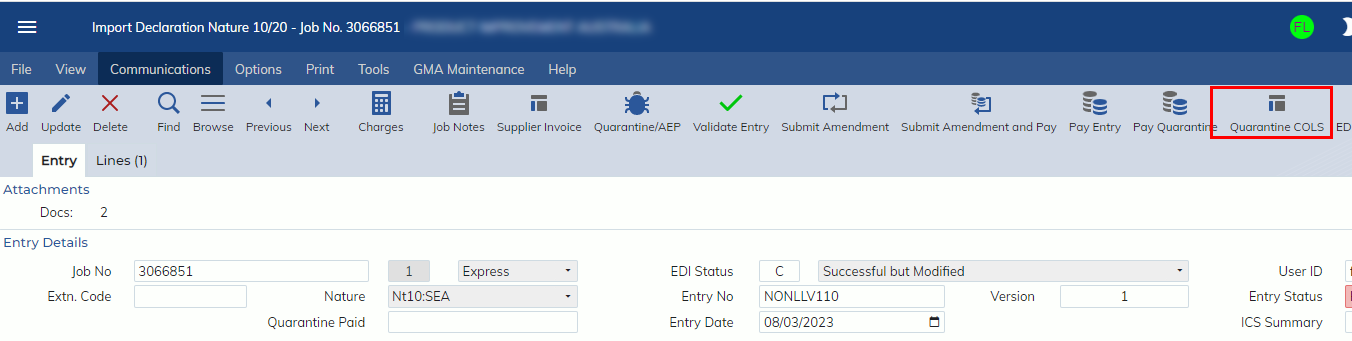
The function can be accessed on
- Customs Processing -> Quarantine COLS -> Cargo Online Lodgement System
- Customs Processing -> Import Declaration Nature 10/20 -> Quarantine COLS toolbar
Where to find the report?
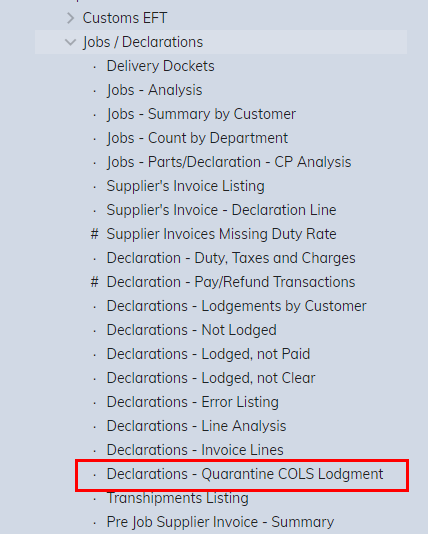
The quarantine COLS Lodgement Listing report can be found on
- Customs Processing -> Reports -> Jobs / Declarations -> Declarations – Quarantine COLS Lodgment
-
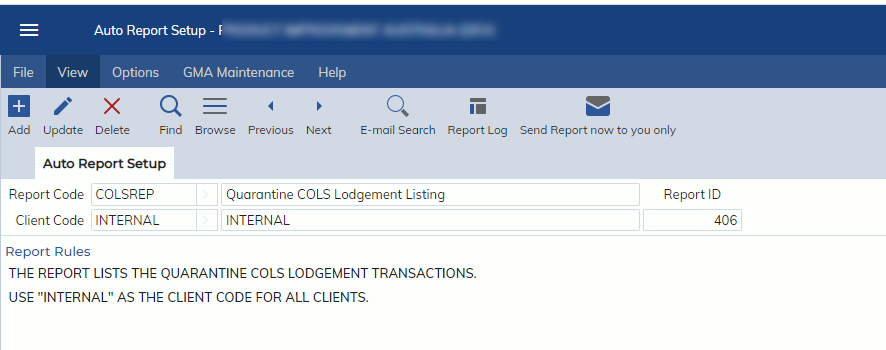
Also, the shelved report is available on Report Scheduling -> Shelved Report Scheduling
- Report Code: COLSREP
-
How to add a new lodgement?
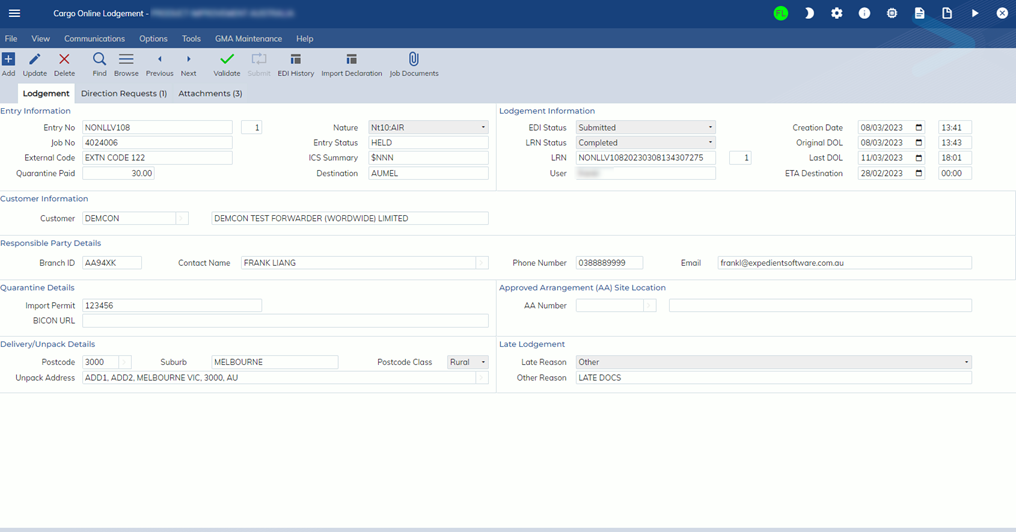
If the entry is held by quarantine for document access, you can click  in the import declaration or press Command Key “O” to access the Quarantine COLS lodgement screen.
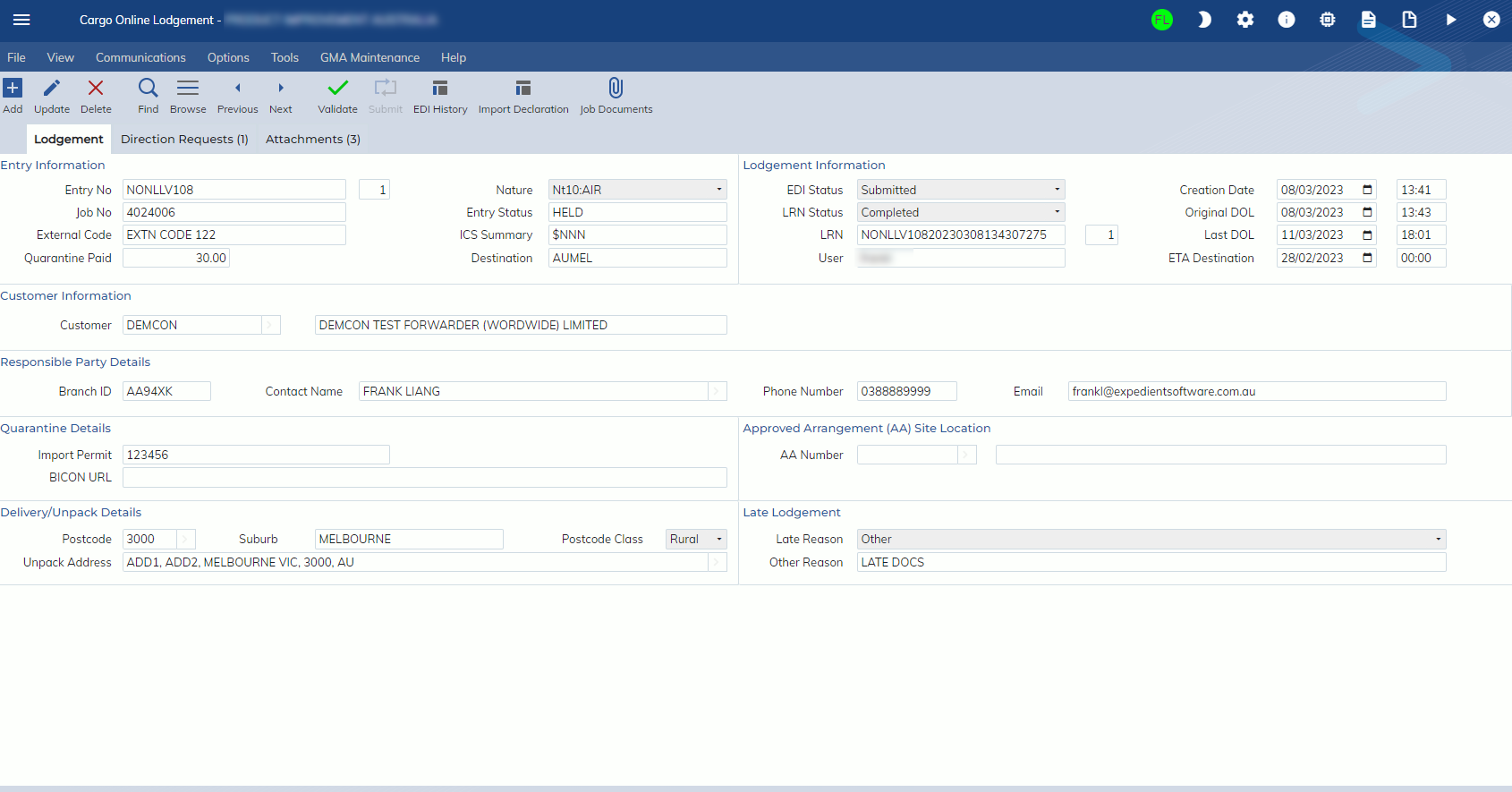
There are two tabs on the Cargo Online Lodgement screen.
- Lodgement
- The tab allows users to register the basic COLS lodgement information.
- When a COLS lodgement is submitted, an LRN will be updated on LRN number field.
- LRN status will be automatically updated by the system to indicate the progress of the document assessment.
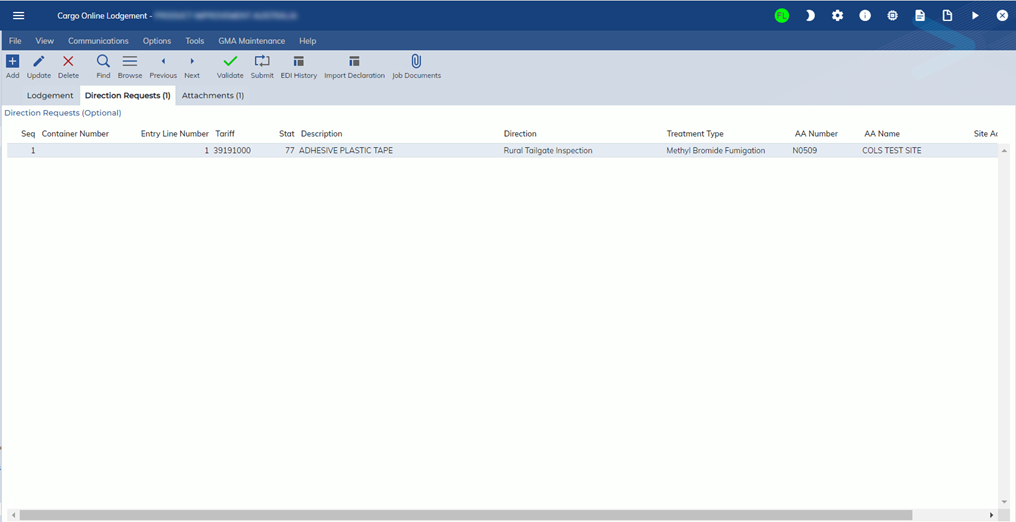
- Direction Requests
- The tab allows users to register multiple direction requests based on container number or entry line.

- Attachments
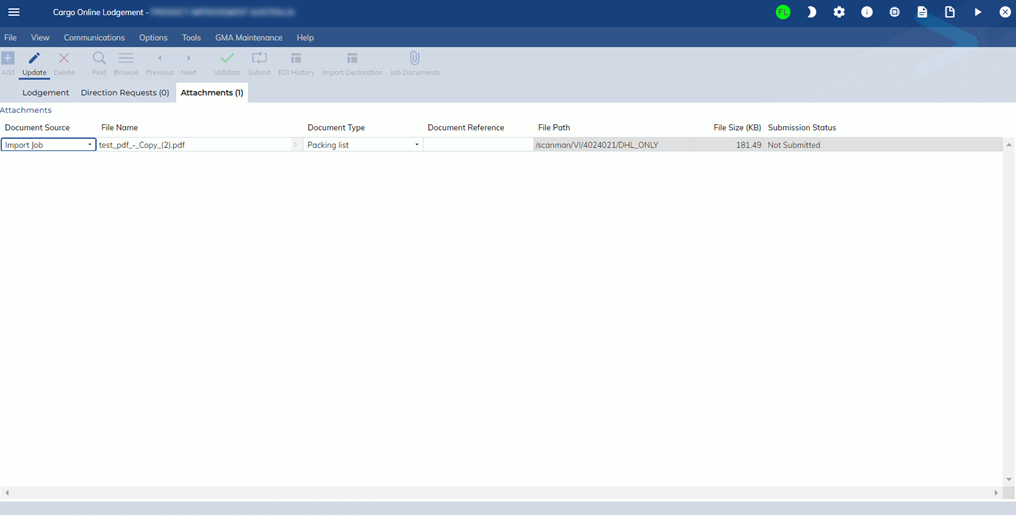
- The tab allows users to select files from Import Job or Customer Masterfile for COLS lodgement.

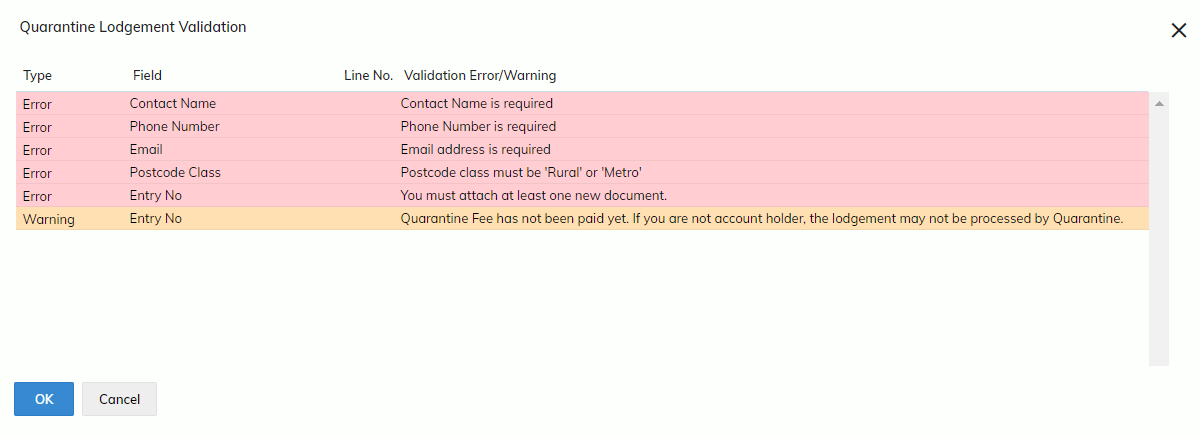
Validate
You can click or press “T” to validate COLS lodgement.
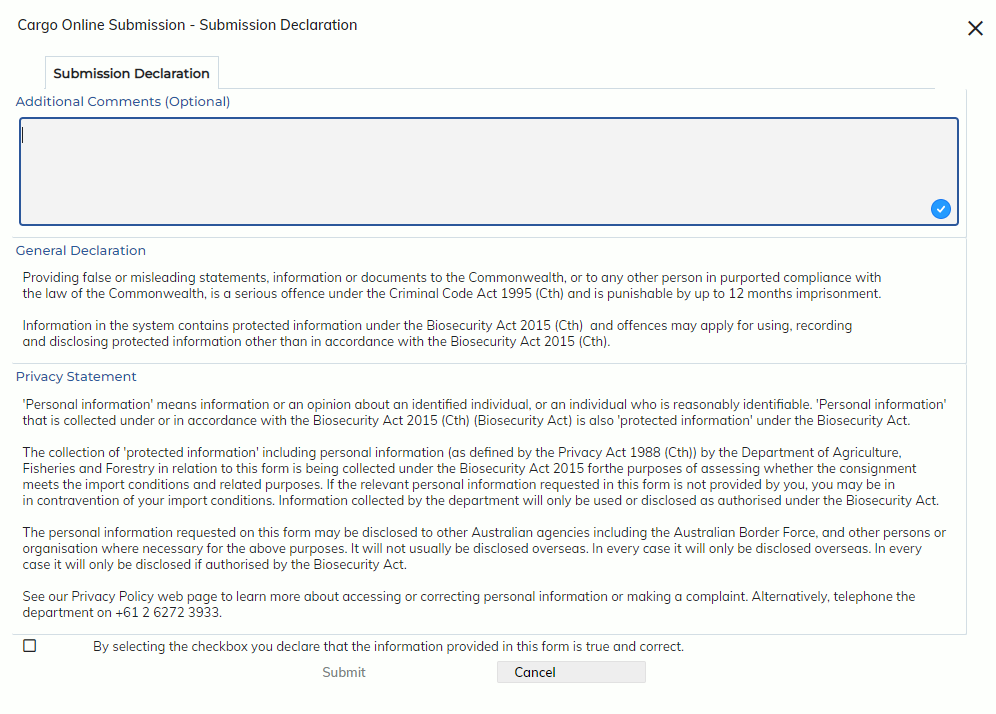
Submit
You can click  or press “S” to submit COLS lodgement. You must accept the “General Declaration” and “Privacy Statement” before you can submit the lodgement.
EDI History
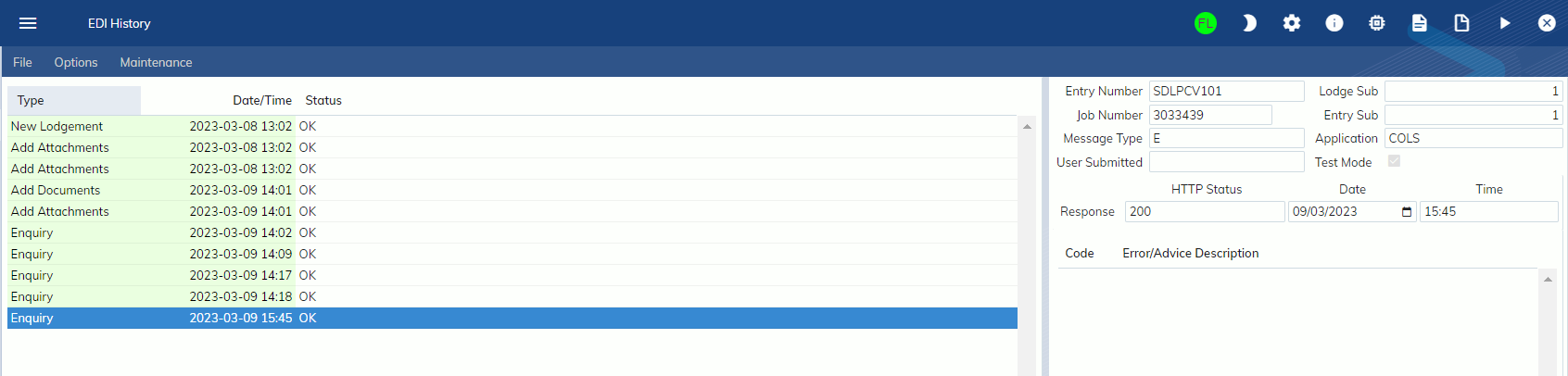
The EDI History screen allows users to view submission history.
How to add new documents after submission?
After the original COLS lodgement is submitted, users are unable to amend any lodgement details except adding new documents.
What you have to do is to
- Find the submitted COLS lodgement record.
- Click “Update” on COLS lodgement screen.
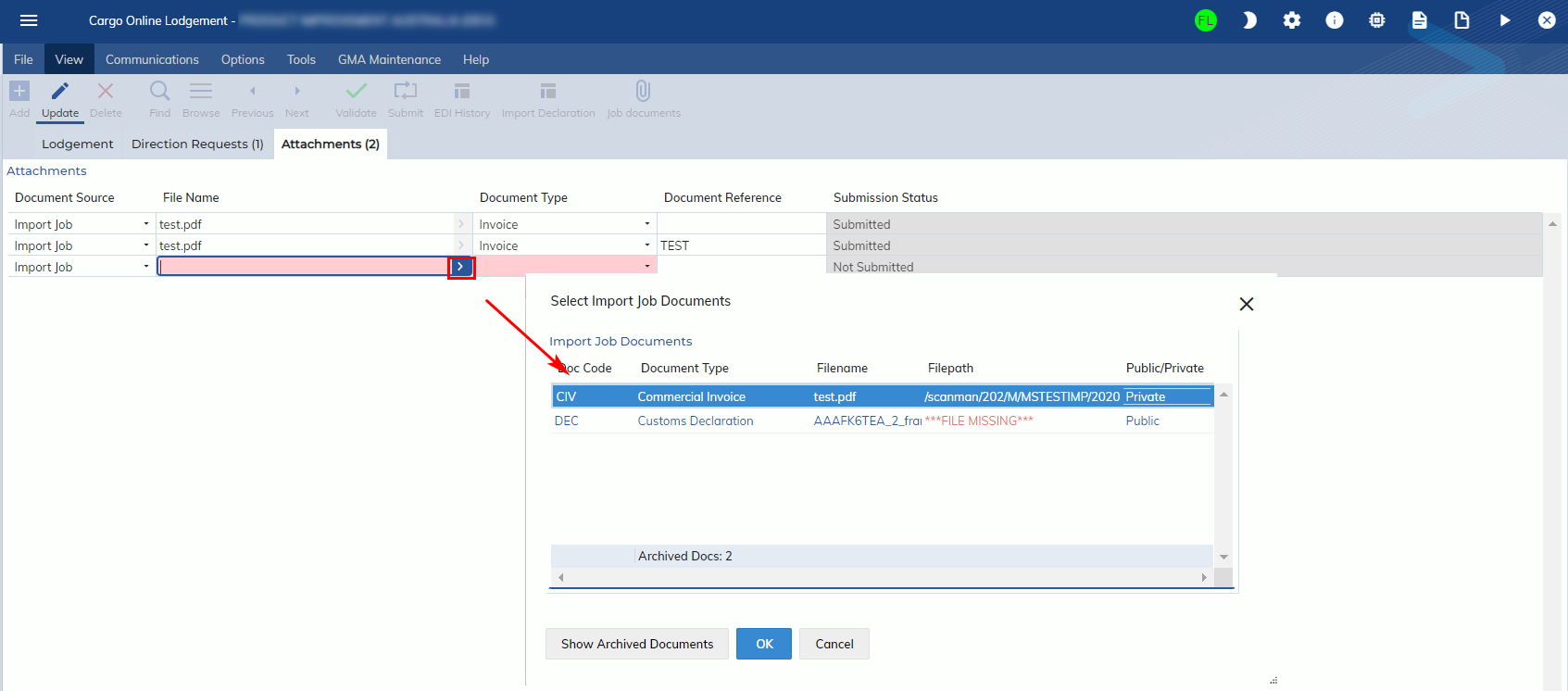
- Add a new document in the attachment tab.
-
- Click the “Submit” button.
How to pay the quarantine service fee?
Normally, the COLS system requires users to make an upfront payment prior to document assessment unless they are an account holders. Otherwise, the system will not allow you to submit documents for assessment.
Users have two ways to pay the quarantine service fee.
- Users can go to import declaration and click
 button to make a payment.
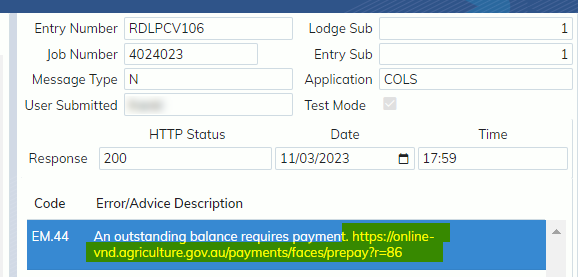
 - Users can go to the payment portal provided on the response message to make a payment.
-
How to submit an enquiry?
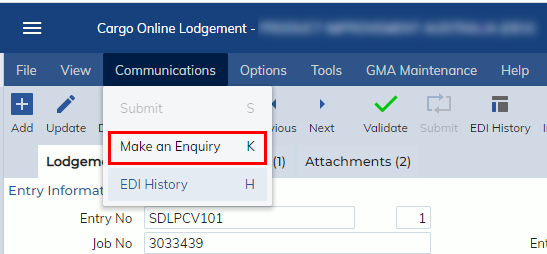
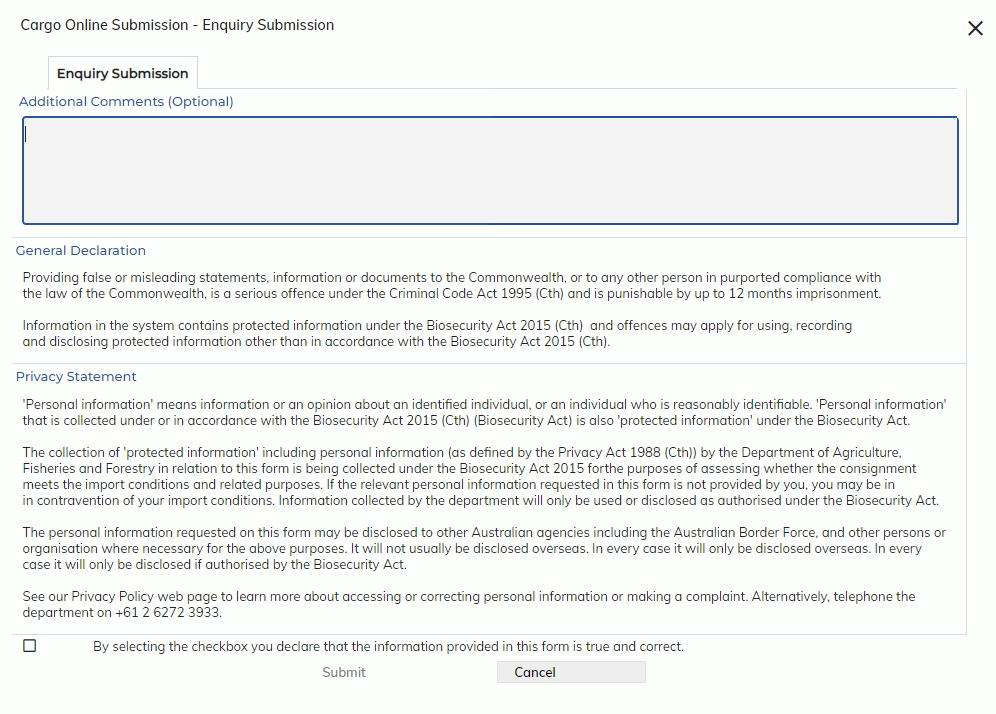
You can submit an enquiry message to quarantine regarding your consignment via COLS lodgement screen. The function is available on communication>Make an Enquiry or press “K”. The function is only enabled when the COLS lodgement is submitted.
How to submit a reassessment request?
You can submit a re-assessment request after the original assessment is complete.
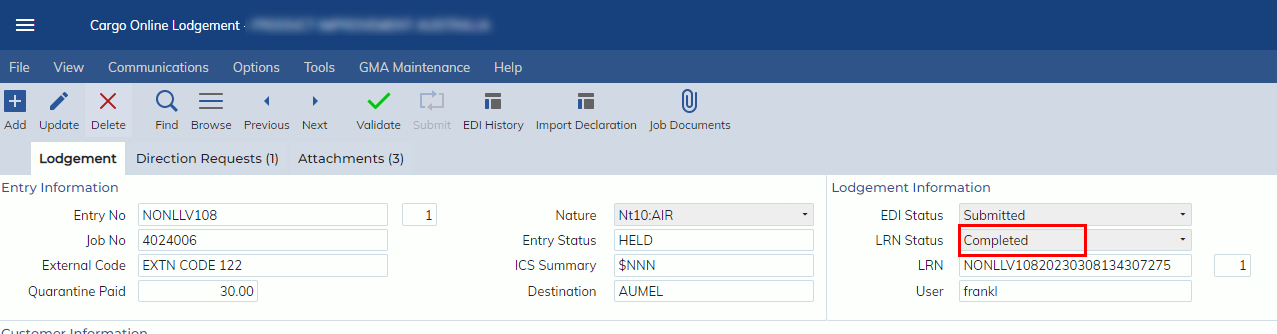
You can create a new COLS lodgement with the same entry number. Click button, The system will create another record. You don’t need to attach a new document for re-assessment as the new record will be linked to your original LRN and the quarantine officer is able to view all submitted documents for that entry.
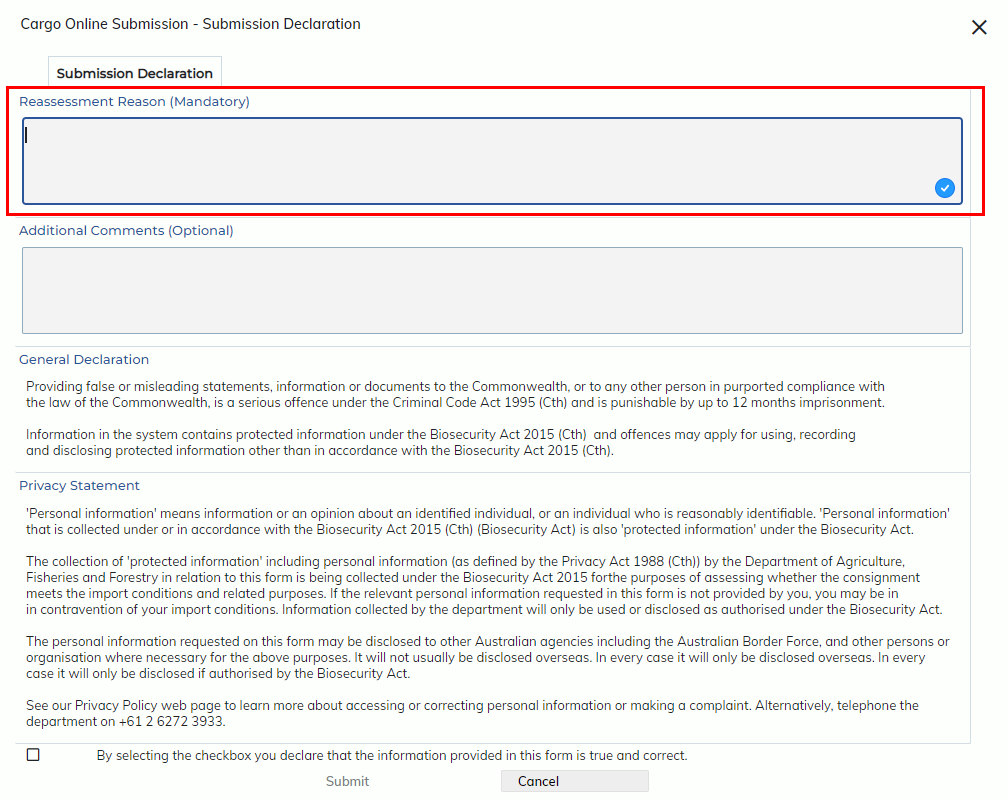
When you click “Submit”, you have to specify the reassessment reason.
How to check account/invoice payment?
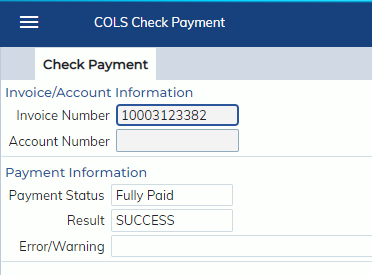
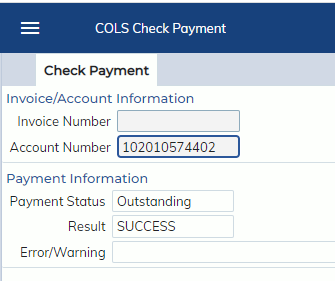
You can go to Customs Processing -> Quarantine COLS -> Check Payment and enter your account number or invoice number.
- If the account/invoice is fully paid, it will display below
- If the account/invoice is not paid, it will display below
-
COLS lodgement Events/Milestone
The following COLS-related events are available.
| COLA | COLS lodgement added |
| COLU | COLS lodgement updated |
| COLD | COLS lodgement deleted |
| COLS | COLS lodgement submitted |
| COAS | COLS documents submitted |
| CORS | COLS reassessment submitted |
| COLC | COLS Lodgement Complete |
| COLE | COLS Enquiry submitted |
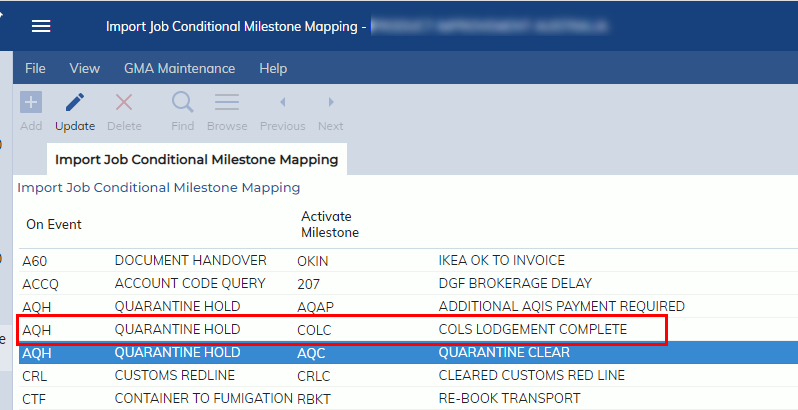
Also, the COLC event has been added as a conditional milestone against AQH event in the Import Job conditional milestone mapping.
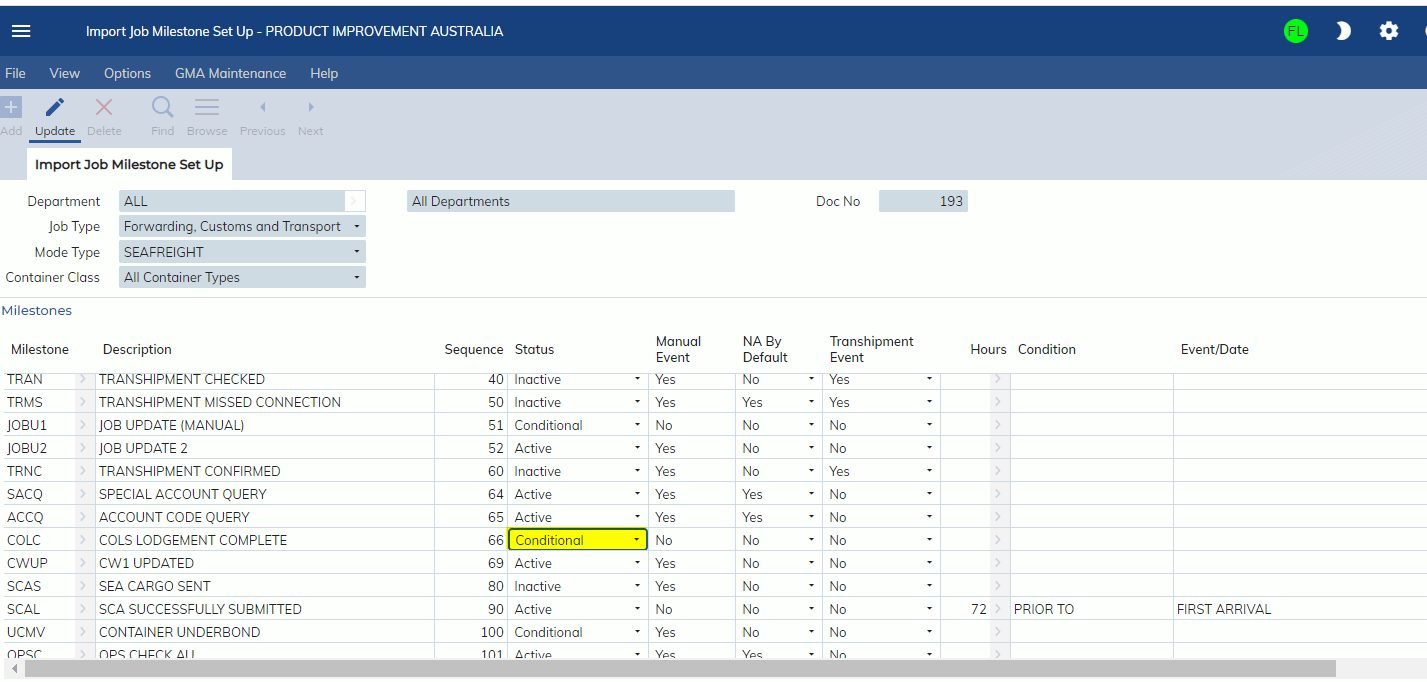
If you would like to add COLC as a conditional milestone to your job milestone, just go to Administration -> Milestones -> Import -> Job Milestones and add COLC as a conditional milestone. When the entry is held by quarantine (AQH event occurs), the system will add the COLC milestone together with AQC to the job.
| Field Name | Description | Validation | Default | ||||||||||||||||||||||||||||||||||||||
|
Lodgement Tab
|
|||||||||||||||||||||||||||||||||||||||||
| Entry No | This field displays the entry number you want to submit documents to quarantine. | Mandatory | Import Declaration | ||||||||||||||||||||||||||||||||||||||
| Entry Sub No | This field displays the entry sub number on your import declaration. | N/A | Import Declaration | ||||||||||||||||||||||||||||||||||||||
| Job No | This field displays the declaration job number. | N/A | Import Declaration | ||||||||||||||||||||||||||||||||||||||
| External Code | This field displays the External Code filled in the import job. | Optional | Job Registration | ||||||||||||||||||||||||||||||||||||||
| Quarantine Paid | This field displays the quarantine service fee paid via import declaration. | N/A | Import Declaration | ||||||||||||||||||||||||||||||||||||||
| Nature | This field displays the entry nature in the import declaration. | N/A | Import Declaration | ||||||||||||||||||||||||||||||||||||||
| Entry Status | This field displays the entry status in the import declaration. | N/A | Import Declaration | ||||||||||||||||||||||||||||||||||||||
| ICS Summary | This field displays the entry ICS summary Status in the import declaration | N/A | Import Declaration | ||||||||||||||||||||||||||||||||||||||
| Destination | This field displays the destination port in the import job registration. | N/A | Job Registration | ||||||||||||||||||||||||||||||||||||||
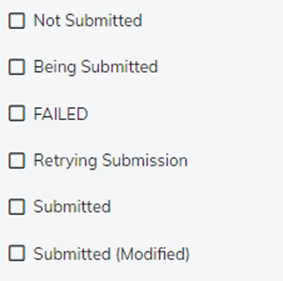
| EDI Status | This field displays the EDI Status for the COLS lodgement.
The following EDI Statuses are available.
|
N/A | System Generated | ||||||||||||||||||||||||||||||||||||||
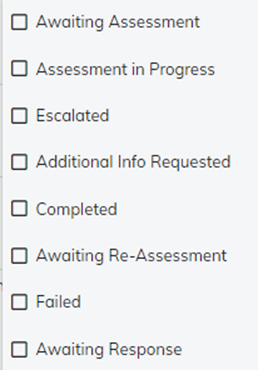
| LRN Status | This field displays the COLS lodgement status. The LRN status will be updated automatically by the system to indicate the progress of the document assessment.
The following statuses are available.
|
N/A | System Generated | ||||||||||||||||||||||||||||||||||||||
| LRN | This field displays the lodgement reference number issued by the COLS system. | N/A | System Generated | ||||||||||||||||||||||||||||||||||||||
| User | This field displays the user who sends the COLS lodgement. | N/A | System Generated | ||||||||||||||||||||||||||||||||||||||
| Creation Date | This field displays the date/time when the COLS lodgement is created. | N/A | System Generated | ||||||||||||||||||||||||||||||||||||||
| Original DOL | This field displays the date/time when the COLS lodgement is originally sent. | N/A | System Generated | ||||||||||||||||||||||||||||||||||||||
| Last DOL | This field displays the date/time when the COLS lodgement/enquiry is last sent. | N/A | System Generated | ||||||||||||||||||||||||||||||||||||||
| ETA Destination | This field displays the ETA destination in the import job registration. | N/A | Job Registration | ||||||||||||||||||||||||||||||||||||||
| Customer | This field displays the customer code and name in the import declaration. | N/A | Import Declaration | ||||||||||||||||||||||||||||||||||||||
| Branch ID | This field displays the branch ID declared on the Import Declaration. Users are able to update branch ID manually. | Mandatory | User Masterfile | ||||||||||||||||||||||||||||||||||||||
| Contact Name | This field displays the contact name for the COLS lodgement. By default, the system will use the user who created the record as the contact name. It can be updated by users manually as needed. | Mandatory | User Masterfile | ||||||||||||||||||||||||||||||||||||||
| Phone Number | This field displays the phone number for the COLS lodgement. By default, the system will use the user’s phone number in the user Masterfile as the phone number. It can be updated by users manually as needed. | Mandatory | User Masterfile | ||||||||||||||||||||||||||||||||||||||
| This field displays the email address for the COLS lodgement. By default, the system will populate the email address by the following orders.
1. If the default email address is specified in the branch Masterfile, the system will populate the default email address. 2. If the default email address is not specified in the branch Masterfile, the system will use the user’s email address in the user Masterfile. |
Mandatory | Branch Masterfile & User Masterfile | |||||||||||||||||||||||||||||||||||||||
| Import Permit | This field displays the import permit related to the COLS lodgement. The permit number should be 6-10 characters. | Optional | Blank | ||||||||||||||||||||||||||||||||||||||
| BICON URL | This field displays the BICON url associated with the COLS lodgement. | Optional | Blank | ||||||||||||||||||||||||||||||||||||||
| AA Number | This field displays the AA number. By default, the system will populate the default AA Number from the branch Masterfile. AA Number is required unless the direction requested is Release on Documents. | Conditional | Branch Masterfile | ||||||||||||||||||||||||||||||||||||||
| Postcode | This field displays the postcode for the delivery unpack address. | Mandatory | Import Declaration | ||||||||||||||||||||||||||||||||||||||
| Suburb | This field displays the suburb for the delivery unpack address. | N/A | |||||||||||||||||||||||||||||||||||||||
| Postcode Class | This field displays the postcode class. The value is populated by the system if the postcode is rural or metro in the import declaration. If the postcode is “Split”, users need to input the postcode class manually.
Two values can be declared. · Rural · Metro |
Mandatory | System Generated | ||||||||||||||||||||||||||||||||||||||
| Unpack Address | This field displays the delivery unpack address. If the postcode is Rural, the system will populate the delivery address in the import declaration by default. Unpack address is not required when the postcode is Metro. | Conditional | Import Declaration | ||||||||||||||||||||||||||||||||||||||
| Late Reason | This field displays the late lodgement reason. If the shipment is for sea cargo and the lodgement is not sent 24 hours before ETA Destination, the user should include the late lodgement reason. | Conditional | Blank | ||||||||||||||||||||||||||||||||||||||
| Other Reason | This field displays other late reason. The field is only enabled when the Late reason is selected as “Other”. | Conditional | Blank | ||||||||||||||||||||||||||||||||||||||
| Direction Requests Tab
|
|||||||||||||||||||||||||||||||||||||||||
| Seq | This field displays the sequence order of direction lines. | N/A | System Generated | ||||||||||||||||||||||||||||||||||||||
| Container Number | This field displays the container number in the import declaration. You can also click the zoom to select. You can either specify the container number or entry line number on the declaration request. When the container number is specified, the entry line number will be disabled, and vice versa. | Optional | Blank | ||||||||||||||||||||||||||||||||||||||
| Entry Line | This field displays the entry line number in the import declaration. When the entry line is selected, the tariff/stat and description will be populated from the import declaration. You can either specify the container number or entry line number on the declaration request. When the container number is specified, the entry line number will be disabled, and vice versa. | Optional | Blank | ||||||||||||||||||||||||||||||||||||||
| Tariff | This field displays the tariff code in the import declaration for the entry line specified. The tariff/stat is displayed for reference only and will not be sent to quarantine in COLS lodgement. | N/A | Import Declaration | ||||||||||||||||||||||||||||||||||||||
| Stat | This field displays statistical code in the import declaration for the entry line specified. The tariff/stat is displayed for reference only and will not be sent to quarantine in COLS lodgement. | N/A | Import Declaration | ||||||||||||||||||||||||||||||||||||||
| Description | This field displays the entry line description in the import declaration for the entry line specified. The description is displayed for reference only and will not be sent to quarantine in COLS lodgement. | N/A | Import Declaration | ||||||||||||||||||||||||||||||||||||||
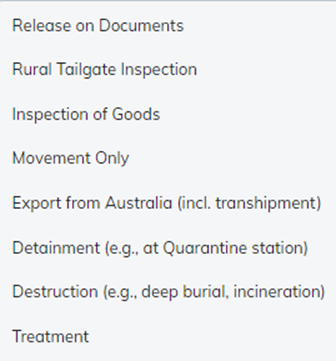
| Direction | This field displays the direction requested in the COLS lodgement. Direction is mandatorily required if you add any direction line.
The following directions are available to select.
|
Mandatory | Blank | ||||||||||||||||||||||||||||||||||||||
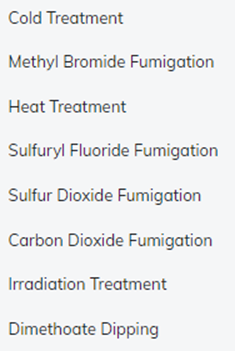
| Treatment Type | This field displays the treatment type.
The following treatment types are available to select.
|
Optional | Blank | ||||||||||||||||||||||||||||||||||||||
| AA Number | This field displays the AA number for the direction line. The AA number is required if the direction request is not “Release on Documents”. | Conditional | Blank | ||||||||||||||||||||||||||||||||||||||
| AA Name | This field displays the AA name for the direction line. The AA name will display automatically when the AA number is entered. | Conditional | Blank | ||||||||||||||||||||||||||||||||||||||
| Site Address | This field displays the AA Site address. | Optional | Blank | ||||||||||||||||||||||||||||||||||||||
| Attachment Tab
|
|||||||||||||||||||||||||||||||||||||||||
| Document Source | This field displays the document source.
The following 2 sources are available to select · Import Job · Customer Masterfile |
Mandatory | Import Job | ||||||||||||||||||||||||||||||||||||||
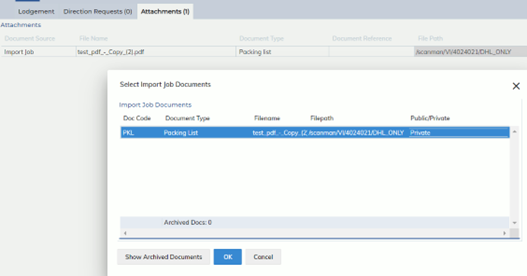
| File Name | This field displays the file name. Users can click the zoom to select the document from the import job/customer masterfile
|
Mandatory | Import Job & Customer Masterfile | ||||||||||||||||||||||||||||||||||||||
| Document Type | This field displays the document type. Users can select the document type from the drop-down list.
The Expedient Document Code to COLS Document Type mapping rules are below:
|
Mandatory | Document ID Masterfile | ||||||||||||||||||||||||||||||||||||||
| Document Reference | This field displays the document reference. This is a free text field. | Optional | Blank | ||||||||||||||||||||||||||||||||||||||
| File Path | This field displays the file path where the file is stored. | N/A | System Generated | ||||||||||||||||||||||||||||||||||||||
| File Size | This field displays the file size. Max file size is 10 MB per file. | N/A | System Generated | ||||||||||||||||||||||||||||||||||||||
| Submission Status | This field displays the submission status for the document. If the document line is submitted, you are unable to delete the line. | N/A | System Generated | ||||||||||||||||||||||||||||||||||||||